Verification
After configuring the plugin, it's essential to verify that everything works correctly with a real Google account. This guide walks you through live testing.
Before You Start
Ensure you've completed:
- Plugin installed and activated
- Google Cloud credentials created
- Client ID entered in plugin settings
- Test Connection shows all green checkmarks
Test Method 1: One Tap Popup
The One Tap popup is the signature feature. Let's test it first.
Step 1: Use an Incognito Window
- Open a new Incognito or Private browser window
- This ensures you're not logged into your WordPress site
- Sign into your Google account if prompted
An incognito window simulates a new visitor to your site, which is when One Tap appears. Your regular browser may have cookies that suppress the popup.
Step 2: Visit Your Site
- Navigate to your WooCommerce My Account page
- URL is typically:
https://yoursite.com/my-account/
Step 3: Watch for the Popup
Within 1-3 seconds, you should see:
- A small popup in the top-right corner
- Your Google account profile picture
- Text saying "Sign in to [Your Site]"
Step 4: Click to Sign In
- Click on your Google account in the popup
- You should be logged in instantly
- No page redirect—you stay on the same page
Success Indicators
If One Tap works:
- ✅ Popup appeared automatically
- ✅ Single click logged you in
- ✅ Stayed on the same page
- ✅ User account created (check Users in admin)
One Tap Not Appearing?
See Troubleshooting One Tap below.
Test Method 2: Sign-In Button
The Sign-In Button is the fallback for users who dismiss One Tap.
Step 1: Dismiss One Tap (if showing)
If the One Tap popup appears, click elsewhere to dismiss it.
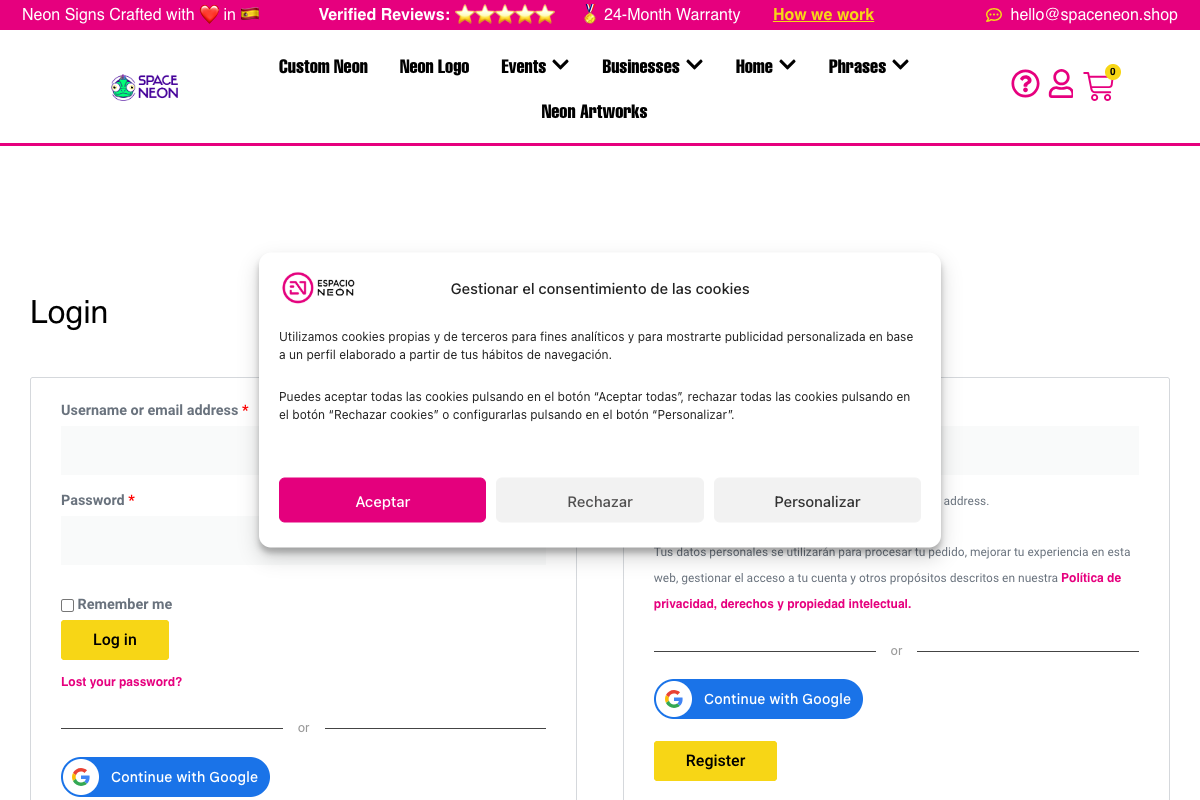
Step 2: Look for the Button
On the My Account page login form, you should see:
- "Sign in with Google" button
- Below or above the standard login form
- Google logo with your configured text
Step 3: Click the Button
- Click the "Sign in with Google" button
- A Google popup window appears
- Select your Google account
- Window closes and you're logged in
Success Indicators
If the button works:
- ✅ Button displayed correctly
- ✅ Google popup opened
- ✅ Account selection worked
- ✅ Logged in after selection
Test Method 3: WordPress Login Page
If you enabled the button on wp-login.php:
Step 1: Visit WordPress Login
Go to: https://yoursite.com/wp-login.php
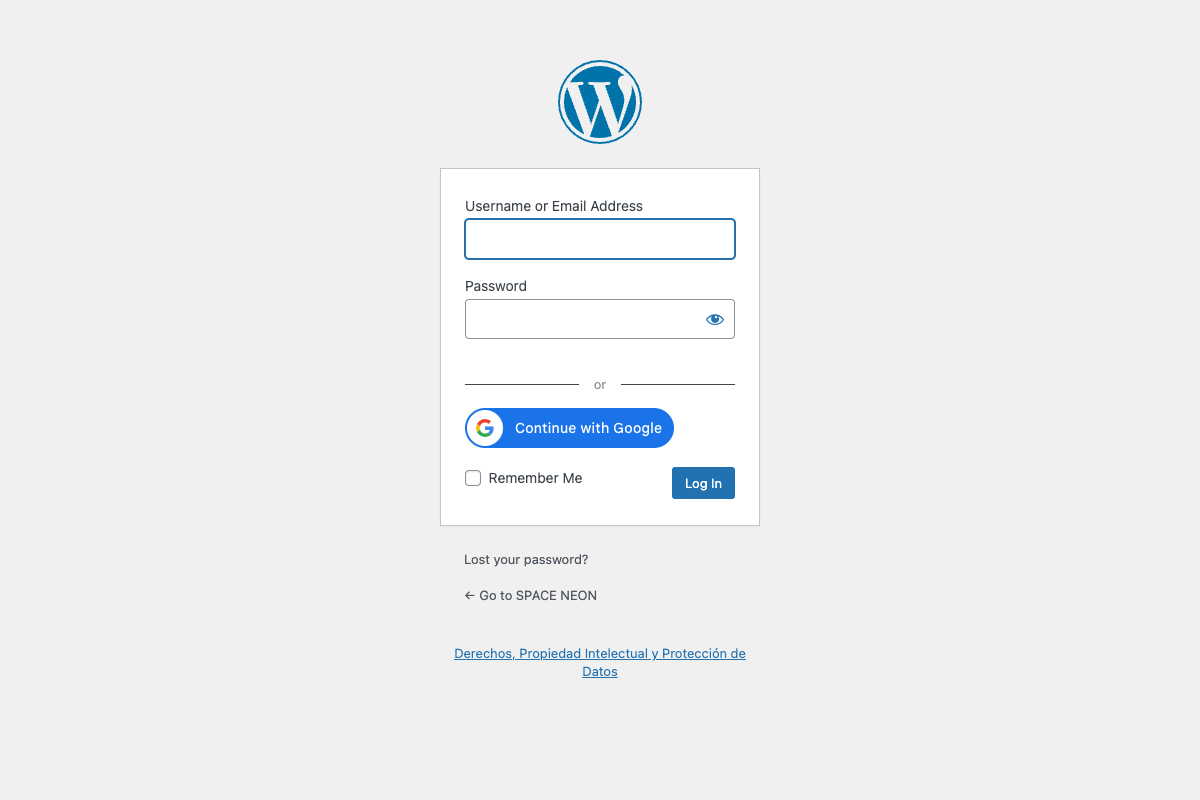
Step 2: Check for Integration
You should see:
- Standard WordPress login form
- "Sign in with Google" button below it
Step 3: Test the Login
- Click the Google button
- Complete the Google authentication
- Verify you're logged into WordPress
Verify User Creation
After successful login, verify the user was created correctly:
Step 1: Access Users List
- Go to Users > All Users in WordPress admin
- Look for the email address you used
Step 2: Check User Details
Click on the user to verify:
| Field | Expected Value |
|---|---|
| Your Google email | |
| First Name | From Google profile |
| Last Name | From Google profile |
| Role | Customer (or your default role) |
| Username | Based on email |
Step 3: Check User Meta (Optional)
In the user profile, you may see:
- Google ID stored in user meta
- First login timestamp
- Login method (google)
Test Existing User Linking
If you have an existing WordPress account with the same email:
Step 1: Create Test Account
- Create a WordPress user with email:
test@gmail.com - Set any password
Step 2: Sign In with Google
- Open incognito window
- Sign in with the same Google account (
test@gmail.com)
Step 3: Verify Account Linked
The existing account should be linked:
- No duplicate user created
- Same user ID maintained
- Google login now works for that account
Connection Test Details
The plugin's Test Connection performs 5 diagnostic checks:
Check 1: Client ID Format
What it tests: Client ID matches Google's format pattern
Pass criteria:
[numbers]-[alphanumeric].apps.googleusercontent.com
Common failures:
- Extra spaces in the field
- Incomplete copy/paste
- Wrong credential type (not OAuth 2.0)
Check 2: Client Secret Format
What it tests: Client Secret matches expected format
Pass criteria:
GOCSPX-[alphanumeric]
Notes:
- This check is optional
- Shows "Skipped" if field is empty
- Empty is acceptable for basic functionality
Check 3: HTTPS Enabled
What it tests: Site URL uses HTTPS protocol
Pass criteria:
- Site URL starts with
https:// - Valid SSL certificate installed
- No mixed content warnings
Why it matters: Google requires HTTPS for all OAuth implementations. HTTP sites cannot use Google Sign-In.
Check 4: REST API Available
What it tests: WordPress REST API is accessible
Pass criteria:
/wp-json/endpoint responds- No authentication errors
- No firewall blocks
Why it matters: The plugin uses REST API for the OAuth callback. If blocked, authentication fails.
Check 5: Google Connection
What it tests: Server can reach Google's authentication servers
Pass criteria:
- Can connect to
accounts.google.com - HTTPS port 443 not blocked
- No DNS resolution issues
Why it matters: The plugin must communicate with Google to validate tokens.
Troubleshooting One Tap
Popup Never Appears
Possible causes:
- One Tap disabled: Check plugin settings
- Already logged in: Log out of WordPress first
- Not signed into Google: Sign into Google in the same browser
- Cooldown period: Google has a cooldown after dismissals
Solutions:
- Clear browser cookies and try again
- Use a completely fresh incognito window
- Verify One Tap is enabled in settings
- Wait 2 hours if you previously dismissed the popup multiple times
Popup Appears But Login Fails
Possible causes:
- Redirect URI mismatch: Check Google Cloud Console
- REST API blocked: Security plugin interference
- JavaScript error: Check browser console
Solutions:
- Verify redirect URIs in Google Cloud Console match exactly
- Whitelist
/wp-json/onetap/in security plugins - Check browser console for JavaScript errors
"Sign in failed" Error
Possible causes:
- Invalid Client ID: Credentials issue
- Domain not authorized: Missing JavaScript origin
Solutions:
- Re-verify Client ID in plugin settings
- Add your domain to "Authorized JavaScript origins" in Google Cloud
Troubleshooting Button
Button Not Showing
Possible causes:
- Button disabled: Check settings
- Theme conflict: CSS hiding the button
- JavaScript error: Script not loading
Solutions:
- Verify "Enable on My Account page" is checked
- Check browser console for errors
- Try with a default theme (Storefront, Twenty Twenty-Four)
Button Shows But Doesn't Work
Possible causes:
- Popup blocked: Browser blocking the Google popup
- Redirect URI wrong: Mismatch in Google Cloud
- CORS error: Cross-origin issue
Solutions:
- Allow popups for your domain
- Verify all redirect URIs in Google Cloud Console
- Check browser console for CORS errors
Testing Checklist
Complete these tests to verify full functionality:
Basic Tests
- Test Connection shows 5 green checkmarks
- One Tap popup appears for new visitors
- One Tap login creates new user
- Sign-In Button displays correctly
- Sign-In Button completes login
User Tests
- New user created with correct email
- New user has correct role assigned
- Existing user with same email is linked (not duplicated)
- User first/last name populated from Google
Location Tests
- Works on My Account page
- Works on wp-login.php (if enabled)
- Works on Checkout page (PRO)
- Works on Cart page (PRO)
Next Steps
Once verification is complete:
- Configure button appearance - Customize to match your brand
- Set up user roles - Configure default roles
- Explore features - Learn about all capabilities
Quick Reference
Test URLs
| Page | Typical URL |
|---|---|
| My Account | https://yoursite.com/my-account/ |
| WordPress Login | https://yoursite.com/wp-login.php |
| Checkout | https://yoursite.com/checkout/ |
| Cart | https://yoursite.com/cart/ |
Expected Behavior
| Action | Expected Result |
|---|---|
| Visit as new user | One Tap popup appears |
| Click One Tap | Instant login, no redirect |
| Dismiss One Tap | Popup closes, button available |
| Click button | Google popup, then login |
| Return visit | One Tap recognizes you |