WooCommerce Integration
OneTap Login for WooCommerce is designed primarily for WooCommerce stores, providing seamless Google sign-in integration across all customer touchpoints.
Overview
Integration Points
OneTap Login integrates with WooCommerce in these locations:
| Location | One Tap | Button | Purpose |
|---|---|---|---|
| My Account | ✅ | ✅ | Login/registration |
| Checkout (Classic) | PRO | PRO | Quick checkout sign-in |
| Checkout (Blocks) | PRO | PRO | Block-based checkout |
| Cart Page | PRO | PRO | Sign in before checkout |
| Thank You Page | PRO | - | Account linking |
My Account Page
Default Integration
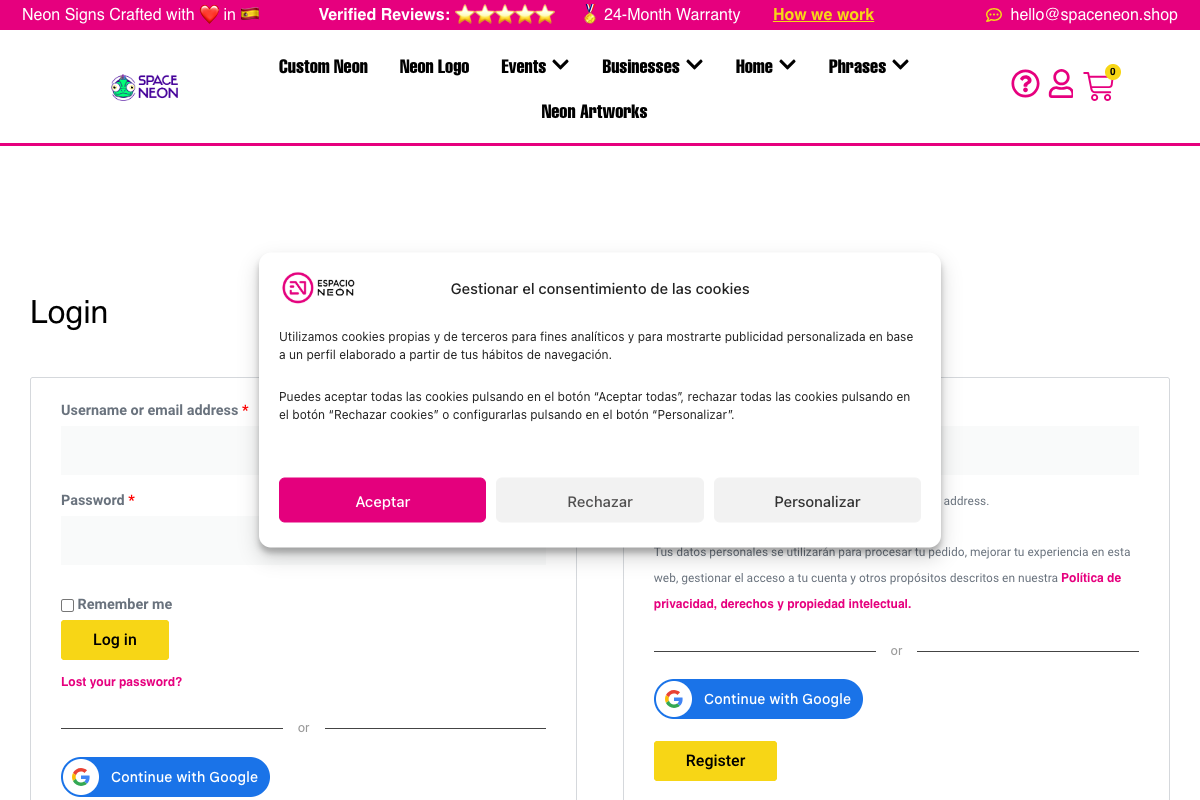
The My Account page (/my-account/) is the primary integration point:
┌────────────────────────────────────────┐
│           My Account                    │
│                                        │
│  Username: [________________]          │
│  Password: [________________]          │
│                                        │
│  [        Log In        ]              │
│                                        │
│  ─────── or continue with ───────      │
│                                        │
│  [G Continue with Google]              │
│                                        │
│  Lost your password?                   │
└────────────────────────────────────────┘
One Tap Popup
One Tap appears automatically when:
- User is not logged in
- User has Google account in browser
- Not in cooldown period
Configuration
Enable in Settings > OneTap Login > General:
- Enable One Tap: Show One Tap popup
- Enable button on My Account: Show sign-in button
Checkout Page
Classic Checkout (PRO)
Google sign-in appears at the top of checkout:
┌────────────────────────────────────────┐
│           Checkout                      │
│                                        │
│  Returning customer? Log in            │
│                                        │
│  ─────── or ───────                    │
│                                        │
│  [G Sign in with Google]               │
│                                        │
│  ─────────────────────────────         │
│                                        │
│  Billing Details                       │
│  ...                                   │
└────────────────────────────────────────┘
WooCommerce Blocks Checkout (PRO)
For stores using Block-based checkout:
The button integrates with:
- Express checkout section
- Login form area
- Compatible with Checkout Blocks 8.0+
Benefits at Checkout
- Pre-filled information: Name, email from Google profile
- Faster checkout: Skip form filling
- Account creation: Optional during checkout
- Order history: Linked to account
Guest Checkout Handling
If guest checkout is enabled:
| Scenario | Behavior |
|---|---|
| User signs in | Account login, checkout continues |
| User skips | Guest checkout proceeds |
| Email matches | Account link option shown |
Cart Page
Why Cart Integration? (PRO)
Sign in earlier in the journey:
- Sync cart across devices
- Apply member discounts
- Personalized experience
Cart Placement
Button appears above/below cart table:
┌────────────────────────────────────────┐
│           Shopping Cart                 │
│                                        │
│  Have an account?                       │
│  [G Sign in with Google]               │
│                                        │
│  ─────────────────────────────         │
│                                        │
│  Product         Qty    Price          │
│  ...                                   │
└────────────────────────────────────────┘
Thank You Page Linking (PRO)
Post-Purchase Account Creation
After guest checkout, prompt account creation:
┌────────────────────────────────────────┐
│  🎉 Thank you for your order!          │
│                                        │
│  Order #1234 confirmed                 │
│                                        │
│  ─────────────────────────────         │
│                                        │
│  Create an account to:                 │
│  ✓ Track your order                    │
│  ✓ Quick reorders                      │
│  ✓ Exclusive offers                    │
│                                        │
│  [G Continue with Google]              │
│                                        │
│  [No thanks]                           │
└────────────────────────────────────────┘
Order Association
When customer creates account:
- Account created with Google email
- Current order linked to account
- Previous orders with same email linked
- Customer can view order history
WooCommerce Customer Data
Profile Information
Google sign-in provides:
| WooCommerce Field | Google Source |
|---|---|
| Google account email | |
| First Name | Given name |
| Last Name | Family name |
| Display Name | Full name |
Billing/Shipping
Not auto-filled from Google:
- Address fields
- Phone number
- Company name
These must be entered manually or from previous orders.
WooCommerce Roles
Default Customer Role
New registrations receive the Customer role:
// Default WooCommerce role for new users
$default_role = 'customer';
Role Configuration
In Settings > OneTap Login > Users:
| Setting | Options |
|---|---|
| Default role | subscriber, customer, contributor, author |
| Auto-register | Enable/disable new account creation |
Role Restrictions
Cannot assign via Google sign-in:
- Administrator ❌
- Editor ❌
- Shop Manager ❌
WooCommerce Emails
Default Behavior
Standard WooCommerce emails sent:
- New Account email (if enabled)
- Order Confirmation
- Order Processing
- etc.
Welcome Email Editor (PRO)
Customize Google user welcome email:
- Different from standard WooCommerce email
- Specific messaging for Google sign-ups
- Merge tags for personalization
WooCommerce Subscriptions
Compatibility
OneTap Login works with WooCommerce Subscriptions:
- Subscribe via Google sign-in
- Account links correctly
- Subscription management in My Account
Considerations
- Ensure customer role has subscription capabilities
- Test subscription flow with Google accounts
- Verify renewal emails reach Google email
WooCommerce Memberships
Integration
Works with WooCommerce Memberships:
- Sign in with Google
- Membership auto-assigned based on purchase
- Access controls work normally
Role Mapping (PRO)
For membership sites:
@company.com → Member
@vip.company.com → VIP Member
Mini Cart & Fragments
AJAX Cart
Google sign-in updates cart fragments:
- Cart count updates
- Mini cart refreshes
- Prices reflect member status
Session Handling
Guest session → Google sign-in → Customer session
Cart preserved and transferred to logged-in user
Shortcode in WooCommerce (PRO)
Product Pages
Add button to product templates:
// In your product template or via hook
echo do_shortcode('[onetap_button]');
Custom Checkout Fields
Within custom checkout sections:
add_action('woocommerce_before_checkout_form', function() {
    echo do_shortcode('[onetap_button text="signin_with" theme="filled_blue"]');
});
WooCommerce Hooks
After Google Registration
add_action('onetap_user_registered', function($user_id, $google_data) {
    // Set customer billing email
    update_user_meta($user_id, 'billing_email', $google_data['email']);

    // Set billing name
    update_user_meta($user_id, 'billing_first_name', $google_data['given_name']);
    update_user_meta($user_id, 'billing_last_name', $google_data['family_name']);
}, 10, 2);
After Google Login
add_action('onetap_user_logged_in', function($user_id, $google_data) {
    // Sync cart from session
    if (WC()->cart) {
        WC()->cart->set_session();
    }

    // Track for analytics
    do_action('customer_google_login', $user_id);
}, 10, 2);
Before Order Completion
add_action('woocommerce_checkout_create_order', function($order, $data) {
    // Check if registered via Google
    $user_id = get_current_user_id();
    if (get_user_meta($user_id, '_onetap_google_id', true)) {
        $order->add_meta_data('_registered_via', 'google');
    }
}, 10, 2);
Order Attribution (PRO)
UTM Tracking
With UTM Tracking enabled:
- Campaign data captured
- Stored in order meta
- Visible in Order Analytics
Order Meta Fields
| Meta Key | Description |
|---|---|
_onetap_utm_source | Traffic source |
_onetap_utm_medium | Marketing medium |
_onetap_utm_campaign | Campaign name |
_onetap_gclid | Google Ads click ID |
Performance Considerations
Cart Fragments
Google sign-in respects:
- WooCommerce cart fragment caching
- AJAX operations
- Page caching plugins
Sessions
- Uses WordPress sessions for guest carts
- Transfers to WooCommerce customer sessions on login
- Compatible with object caching
Testing WooCommerce Integration
Test Scenarios
-
New customer registration:
- Sign up on My Account
- Verify customer role assigned
- Check welcome email
-
Existing customer login:
- Sign in on checkout
- Verify account linked
- Check order history
-
Guest checkout then account:
- Complete order as guest
- Use Thank You linking
- Verify orders merged
-
Cart persistence:
- Add items as guest
- Sign in with Google
- Verify cart preserved
Troubleshooting
Button Not on Checkout
Causes:
- PRO feature not activated
- Checkout template override
- JavaScript conflict
Solutions:
- Verify PRO license
- Check theme templates
- Test with default theme
Cart Not Preserved
Causes:
- Session configuration
- Caching issue
- Plugin conflict
Solutions:
- Check session settings
- Exclude from cache
- Test plugins individually
Orders Not Linking
Causes:
- Email mismatch
- Thank You linking disabled
- Multiple email addresses
Solutions:
- Verify email matches
- Enable Thank You linking
- Check order customer_id
Best Practices
Do's
- Enable on My Account at minimum
- Test checkout flow thoroughly
- Use Thank You page linking
- Track UTM data for attribution
Don'ts
- Don't disable for logged-in users
- Don't skip checkout testing
- Don't ignore mobile experience
- Don't override core templates without testing
Next Steps
- WordPress Only - Usage without WooCommerce
- Thank You Page Linking - Post-checkout linking
- Custom Redirects - Post-login destinations