User Settings
The Users tab controls how new accounts are created and managed when users sign in with Google. This guide covers all user-related configuration options.
Accessing User Settings
- Go to Settings > OneTap Login in WordPress admin
- Click the Users tab
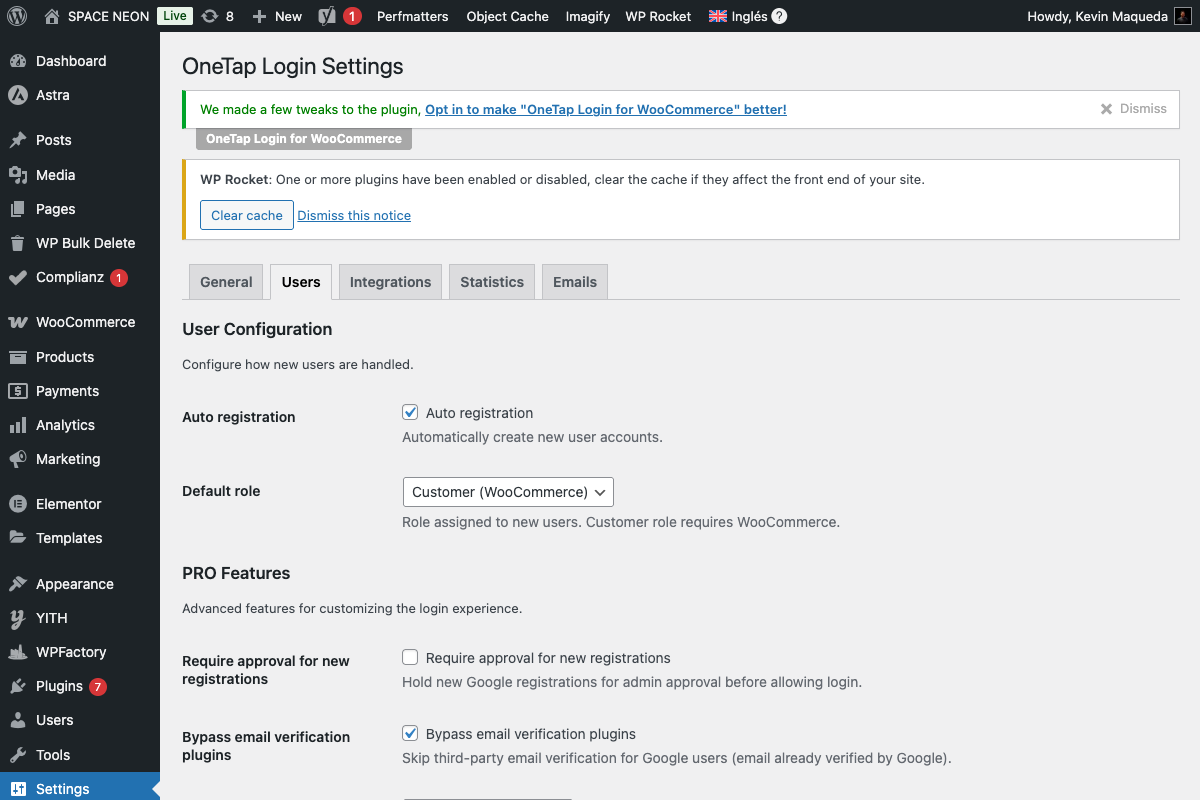
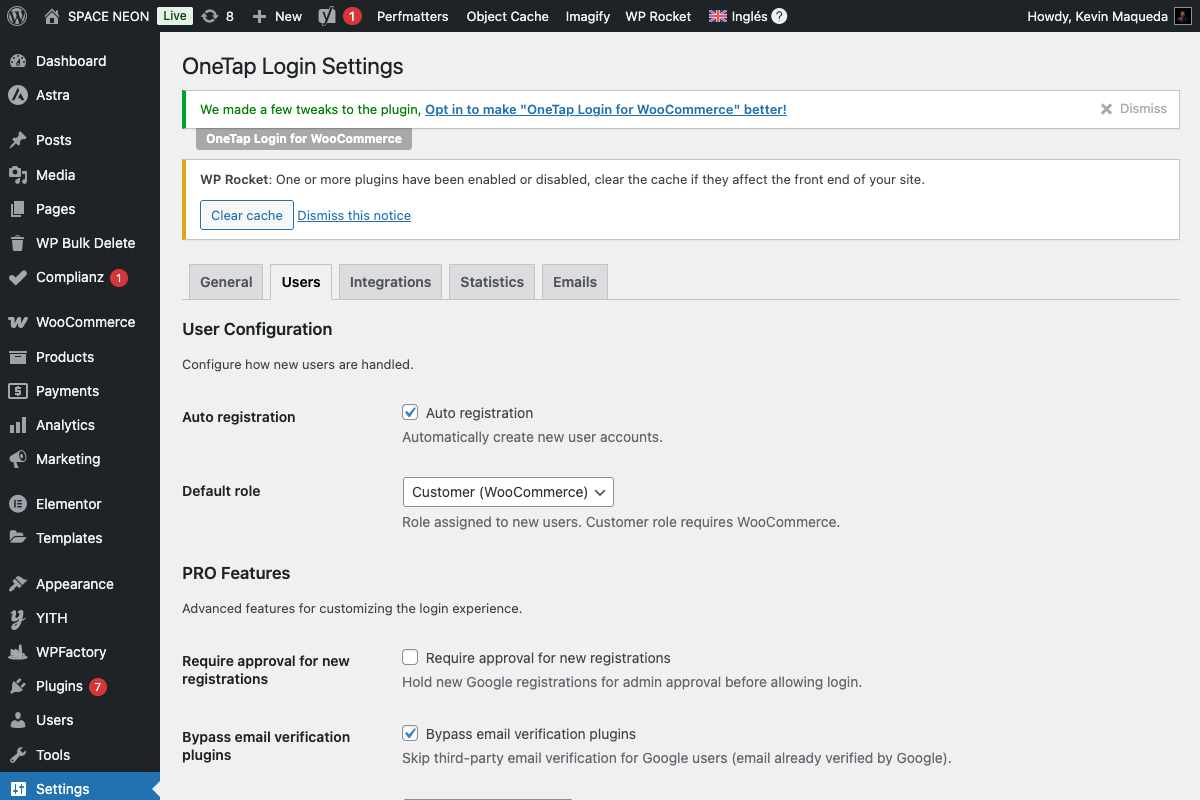
User Configuration Section (FREE)
These settings are available in the free version.
Auto-Register Users
Field: Auto-register users
Default: Enabled
| Setting | Behavior |
|---|---|
| Enabled | New accounts created automatically for first-time Google users |
| Disabled | Only existing users can sign in with Google |
Keep auto-registration enabled for the best user experience. Disabling it means users must first register manually.
When disabled:
- Users see "No account found" error
- They must register through traditional forms first
- Then they can link their Google account
Default Role
Field: Default role for new users
Default: Customer (with WooCommerce) or Subscriber (without)
Assigns this role to all new users created via Google sign-in.
Available roles:
| Role | Description | Typical Use |
|---|---|---|
| Customer | WooCommerce customer role | E-commerce sites |
| Subscriber | Basic WordPress role | Blogs, membership sites |
| Contributor | Can write but not publish | Multi-author blogs |
| Author | Can publish own posts | Content platforms |
For security, these roles are never available for Google sign-in:
- Administrator
- Editor
- Shop Manager
Users with these roles cannot use Google login—they must use standard WordPress authentication.
Understanding Role Assignment
When a user signs in with Google:
- New user: Gets the default role you configured
- Existing user: Keeps their current role (unchanged)
- Admin/Editor: Redirected to standard login
New Google User → Default Role (Customer/Subscriber)
Existing User → No Change
Admin Role → Cannot Use Google Login
PRO User Features
These features require OneTap Login PRO.
Custom Redirects
Field: Post-login redirect URL
Default: (empty) - uses WooCommerce My Account
Redirect users to a specific URL after login.
Options:
| Type | Example | Use Case |
|---|---|---|
| Specific URL | https://site.com/welcome/ | Welcome page |
| Relative path | /dashboard/ | Internal page |
| Dynamic | {referrer} | Back to previous page |
Role-Based Redirects
Different URLs based on user role:
| Role | Redirect URL |
|---|---|
| Customer | /my-account/ |
| Subscriber | /members/ |
| Contributor | /wp-admin/ |
Domain Restrictions
Field: Allowed email domains
Default: (empty) - all domains allowed
Restrict registration to specific email domains.
Use cases:
- B2B: Only allow
@company.com - Education: Only allow
@university.edu - Internal: Only allow
@yourdomain.com
Example configuration:
company.com
partner.org
contractor.net
Behavior:
- Users with unlisted domains see an error
- Existing users with unlisted domains can still log in
- Empty field = no restrictions
Domain Blacklist
Field: Blocked email domains
Default: (empty)
Block specific email domains from registration.
Common blocks:
tempmail.com
guerrillamail.com
10minutemail.com
Account Behavior
Existing User Matching
When a Google user's email matches an existing WordPress account:
| Scenario | Result |
|---|---|
| Email matches, no Google ID | Account linked to Google |
| Email matches, has Google ID | Normal login |
| Email doesn't match | New account created |
How linking works:
- User clicks "Sign in with Google"
- Plugin checks if email exists in WordPress
- If yes, links Google ID to existing account
- User's password and data preserved
Account Merge (PRO)
For more control over account linking:
Field: Enable account merge
Default: Disabled
When enabled:
- Users with matching email see a merge prompt
- Must enter existing password to confirm
- Prevents unauthorized account takeover
See Account Merge for details.
Pending Approval (PRO)
Field: Require approval for new users
Default: Disabled
When enabled:
- New Google users get "pending" status
- Admin must approve before they can access
- Users see "awaiting approval" message
See Pending Approval for details.
User Data from Google
When a user signs in, OneTap Login retrieves:
| Data | WordPress Field | Notes |
|---|---|---|
user_email | Primary identifier | |
| First Name | first_name | From Google profile |
| Last Name | last_name | From Google profile |
| Profile Picture | avatar | Stored as user meta |
| Google ID | google_id | Stored as user meta |
Username Generation
Since Google doesn't provide usernames, the plugin generates one:
Algorithm:
- Try email prefix:
johnfromjohn@gmail.com - If taken, add number:
john2 - If still taken, increment:
john3
Example:
john@gmail.com → john
john@company.com → john2 (if john exists)
john@other.com → john3 (if john and john2 exist)
Display Name
The display name is set as:
{First Name} {Last Name}
Example: "John Smith"
Security Considerations
Forbidden Roles
These roles cannot authenticate via Google:
| Role | Reason |
|---|---|
| Administrator | High privilege, needs 2FA |
| Editor | Content management access |
| Shop Manager | WooCommerce management access |
What happens:
- User sees "This account type cannot use Google sign-in"
- Redirected to standard WordPress login
- Must use username/password
2FA Detection
If a user has two-factor authentication enabled:
- Plugin detects 2FA status
- Redirects to standard login
- User completes normal 2FA flow
Supported 2FA plugins:
- Two Factor (WordPress.org)
- Wordfence 2FA
- WP 2FA
- iThemes Security
- Google Authenticator
- miniOrange 2FA
See 2FA Integration for details.
Settings Reference Table
| Setting | Type | Default | Version |
|---|---|---|---|
| Auto-register users | Checkbox | On | FREE |
| Default role | Select | Customer | FREE |
| Post-login redirect | URL | (empty) | PRO |
| Allowed domains | Text | (empty) | PRO |
| Blocked domains | Text | (empty) | PRO |
| Enable account merge | Checkbox | Off | PRO |
| Require approval | Checkbox | Off | PRO |
| Role-based redirects | Multiple | (empty) | PRO |
Common Configurations
E-commerce Store
Auto-register: Enabled
Default role: Customer
Redirect: /my-account/
Membership Site
Auto-register: Enabled
Default role: Subscriber
Redirect: /members-area/
B2B Portal
Auto-register: Enabled
Default role: Customer
Allowed domains: company.com, partner.org
Redirect: /portal/
Internal Tool
Auto-register: Disabled
Default role: Subscriber
Allowed domains: yourdomain.com
Next Steps
- Button Customization - Style the sign-in button
- Pages & Locations - Where buttons appear
- Role Mapping (PRO) - Advanced role assignment