Pending Approval
Pending Approval adds a manual approval step for new users who register via Google sign-in. Useful for membership sites, B2B platforms, and any site requiring vetting before granting access.
PRO Feature
Pending Approval is a PRO feature. Upgrade to PRO to unlock this functionality.
How It Works
User registers via Google
        ↓
Account created with "pending" status
        ↓
User sees "Awaiting approval" message
        ↓
Admin receives notification
        ↓
Admin reviews and approves/rejects
        ↓
User notified of decision
Configuration
Enable Pending Approval
- Go to Settings > OneTap Login
- Click Users tab
- Enable Require approval for new users
- Configure notification settings
- Save Changes
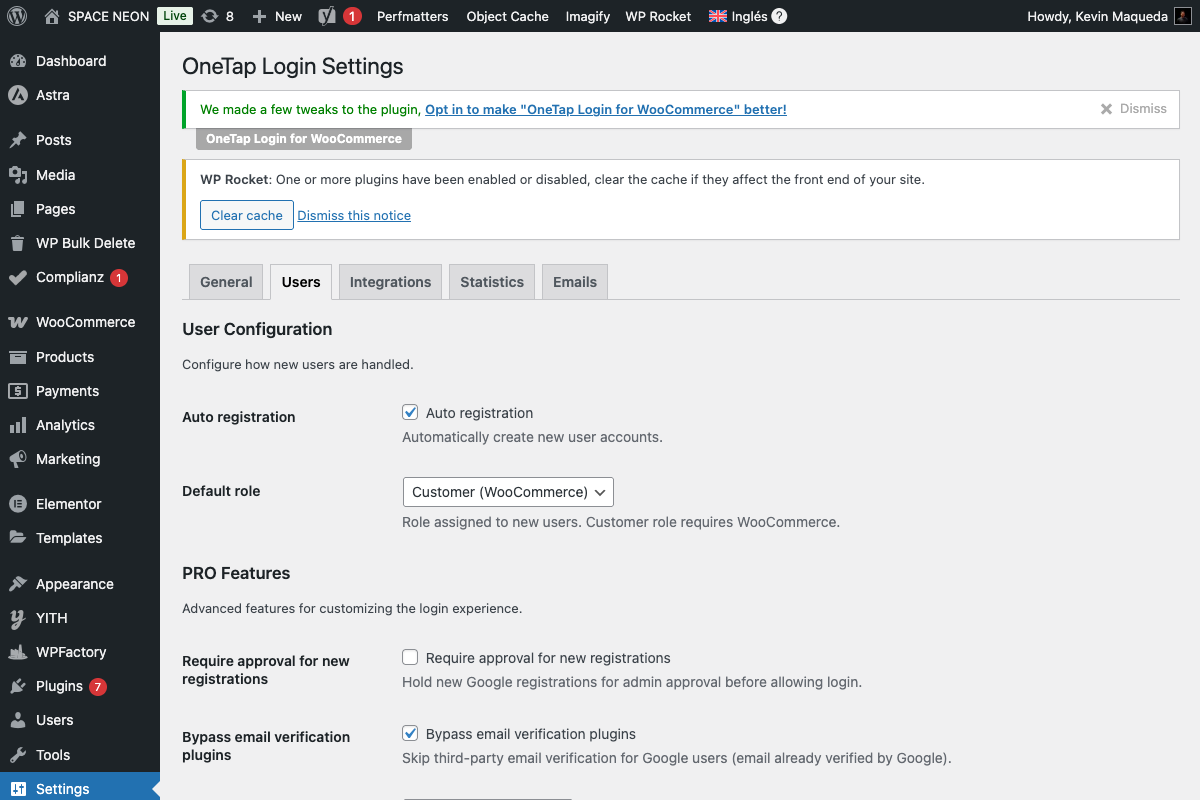
Settings Options
| Setting | Description |
|---|---|
| Enable approval | Toggle feature on/off |
| Notify admin | Email admin when user registers |
| Pending message | Message shown to pending users |
| Approval email | Email sent when approved |
| Rejection email | Email sent when rejected |
User Experience
Registration Flow
- User clicks Google sign-in
- Google authentication completes
- Account created but restricted
- User sees pending message:
Your account is awaiting approval.
You'll receive an email when approved.
Pending State
While pending, user:
- Cannot access My Account features
- Cannot place orders
- Cannot access member content
- CAN log out and log back in
After Approval
Once approved:
- Full account access
- Normal functionality
- Receives approval email
After Rejection
If rejected:
- Account deleted or marked inactive
- Receives rejection email
- Cannot log in with that Google account
Admin Workflow
Notification Email
Admins receive email with:
- User name and email
- Registration timestamp
- Quick approve/reject links
Approval Queue
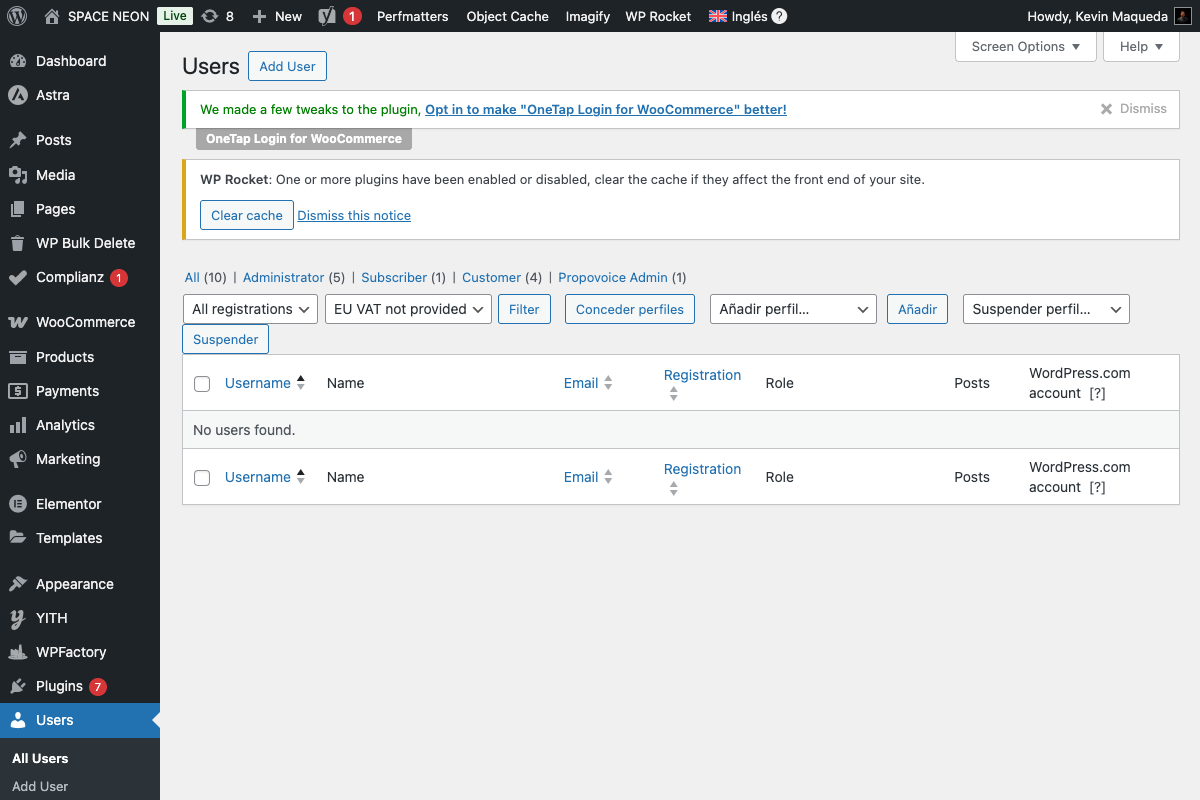
View pending users:
- Go to Users > All Users
- Filter by "Pending" status
- Or use OneTap Pending Queue
Individual Actions
For each pending user:
- Approve: Grant access
- Reject: Deny access
- View: See user details
Bulk Actions
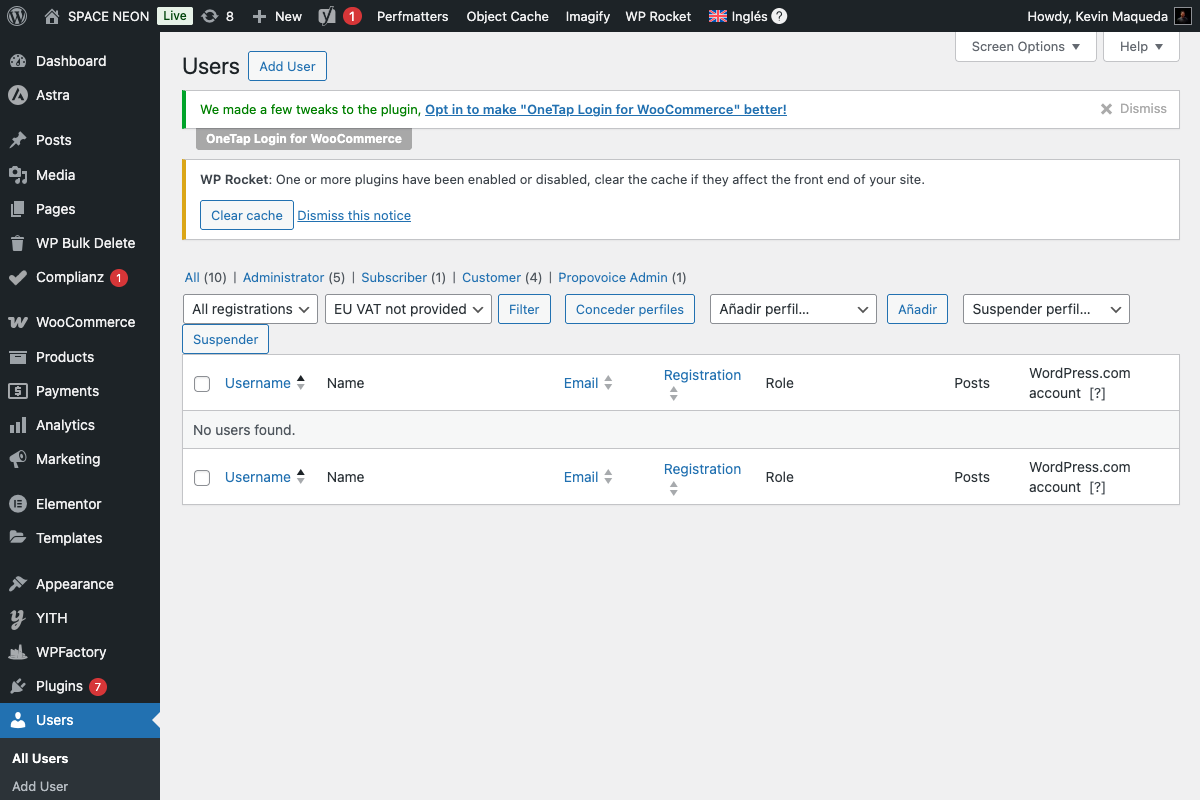
Handle multiple users at once:
- Select multiple users
- Choose "Approve" or "Reject" from dropdown
- Click "Apply"
Customizing Messages
Pending Message
Shown to users awaiting approval:
Default:
"Your account is pending approval. You'll be notified by email once approved."

Custom:
"Thanks for registering! Our team will review your application within 24 hours."
Approval Email
Subject:
Your {site_name} account has been approved!
Body:
Hi {first_name},

Great news! Your account at {site_name} has been approved.

You can now sign in and access all features:
{login_url}

Welcome aboard!
Rejection Email
Subject:
Update on your {site_name} account request
Body:
Hi {first_name},

We've reviewed your account request for {site_name}.

Unfortunately, we're unable to approve your account at this time.

If you have questions, please contact us at {admin_email}.
Use Cases
Membership Site
Enable pending approval: Yes
Notification: Immediate email
Approval: Manual by admin
Rejection: Rare, with reason
B2B Platform
Enable pending approval: Yes
Combined with: Domain restrictions
Fast-track: Auto-approve known domains
Manual: Review unknown domains
Educational Platform
Enable pending approval: Yes
Verification: Check .edu email
Approval: After verification
Timing: Within 24 hours
Exclusive Community
Enable pending approval: Yes
Review: Application details
Approval: Curator decision
Communication: Personalized emails
Combining with Other Features
With Domain Restrictions
1. Domain restrictions first (whitelist)
2. If allowed, create pending account
3. Admin approves from allowed domain
With Role Mapping
1. User registers
2. Role determined by domain
3. Account pending until approved
4. Approved user gets mapped role
With Welcome Email
1. User approved
2. Approval email sent
3. Welcome email sent (if configured)
Auto-Approval Rules
Consider auto-approving certain users:
By Domain
add_filter('onetap_require_approval', function($require, $email) {
    // Auto-approve company employees
    if (str_ends_with($email, '@company.com')) {
        return false;
    }
    return $require;
}, 10, 2);
By Existing Orders
add_filter('onetap_require_approval', function($require, $email) {
    // Auto-approve if has previous orders as guest
    global $wpdb;
    $orders = $wpdb->get_var($wpdb->prepare(
        "SELECT COUNT(*) FROM {$wpdb->posts} p
         JOIN {$wpdb->postmeta} pm ON p.ID = pm.post_id
         WHERE p.post_type = 'shop_order'
         AND pm.meta_key = '_billing_email'
         AND pm.meta_value = %s",
        $email
    ));
    return $orders == 0; // Only require approval if no orders
}, 10, 2);
Hooks for Developers
Before Creating Pending User
add_filter('onetap_pending_user_data', function($user_data, $google_data) {
    // Add pending reason or metadata
    $user_data['meta_input']['_pending_reason'] = 'Awaiting verification';
    return $user_data;
}, 10, 2);
After Approval
add_action('onetap_user_approved', function($user_id, $approved_by) {
    // Log approval
    // Trigger workflow
    // Sync to CRM
}, 10, 2);
After Rejection
add_action('onetap_user_rejected', function($user_id, $rejected_by, $reason) {
    // Log rejection
    // Analytics
}, 10, 3);
Troubleshooting
User Not Seeing Pending Message
Causes:
- Approval not enabled
- User already approved
- Cache showing old state
Solutions:
- Verify setting enabled
- Check user status
- Clear cache
Admin Not Receiving Notifications
Causes:
- Notification disabled
- Email configuration issue
- Spam filter
Solutions:
- Enable notifications
- Test WordPress email
- Check spam folder
Can't Find Pending Users
Causes:
- Wrong filter applied
- Users already processed
- Different user role view
Solutions:
- Clear all filters
- Check recent activity
- View "All" users
Approval Not Working
Causes:
- Permission issue
- Plugin conflict
- Database error
Solutions:
- Verify admin permissions
- Test with other plugins disabled
- Check error logs
Security Considerations
Why Use Pending Approval?
- Prevent spam registrations
- Vet users before access
- Comply with membership requirements
- Control community quality
Rejection Handling
Rejected users:
- Can't re-register with same Google
- Account data can be deleted
- May try different Google account
Rate Limiting
Combine with rate limiting to prevent:
- Registration spam
- Approval queue flooding
Best Practices
Response Time
- Set expectations in pending message
- Approve within reasonable time (24-48h)
- Don't leave users waiting
Communication
- Clear pending message
- Informative approval email
- Polite rejection email
Process
- Regular queue review
- Bulk actions for efficiency
- Document approval criteria
Next Steps
- Domain Restrictions - Pre-filter registrations
- Role Mapping - Assign roles after approval
- Email Marketing - Post-approval automation