Admin User Column
The Admin User Column adds a "Registered Via" column to the WordPress Users list, making it easy to identify which users signed up with Google.
Admin User Column is a PRO feature. Upgrade to PRO to unlock this functionality.
What It Shows
In Users > All Users, you'll see a new column:
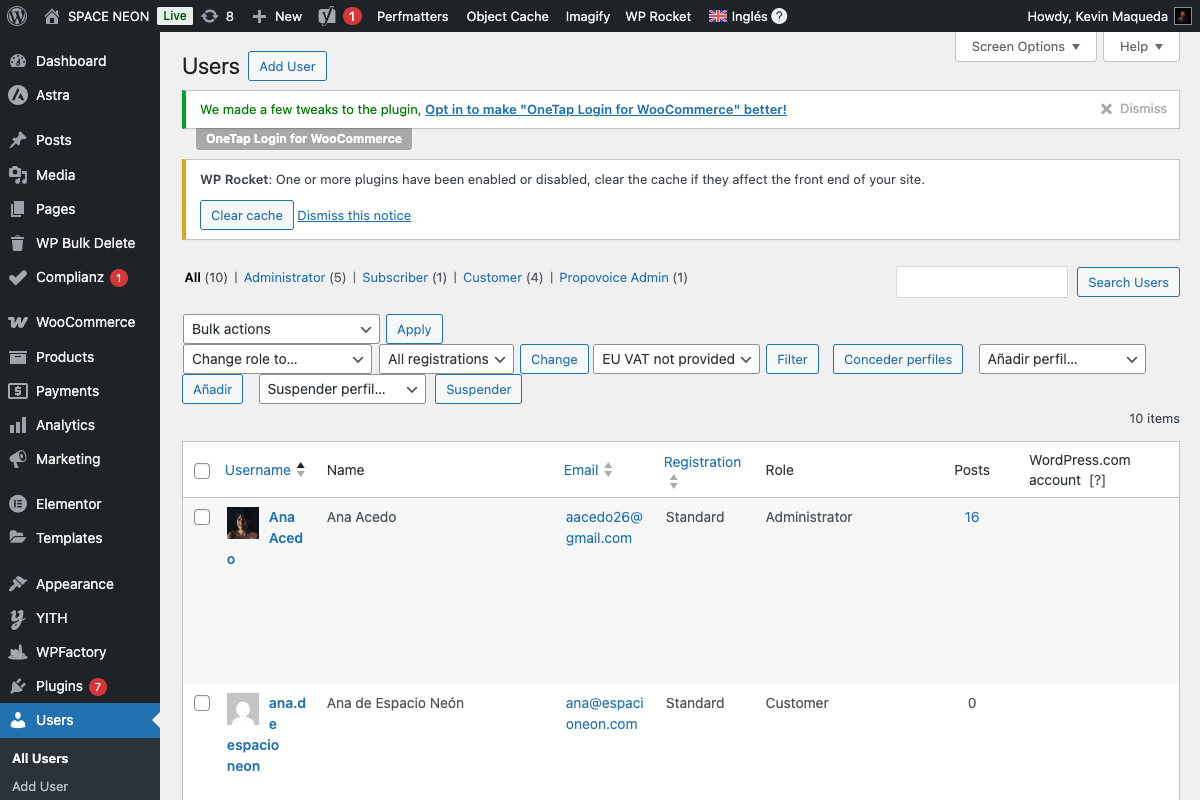
| Column Value | Meaning |
|---|---|
| [G] Google | User registered via Google sign-in |
| Standard | User registered via form |
| Admin Created | User created by administrator |
| Imported | User imported via tool |
Features
Visual Indicator
Google users display:
- Google "G" icon
- "Google" label
- Colored badge
Filter Dropdown
Filter users by registration method:
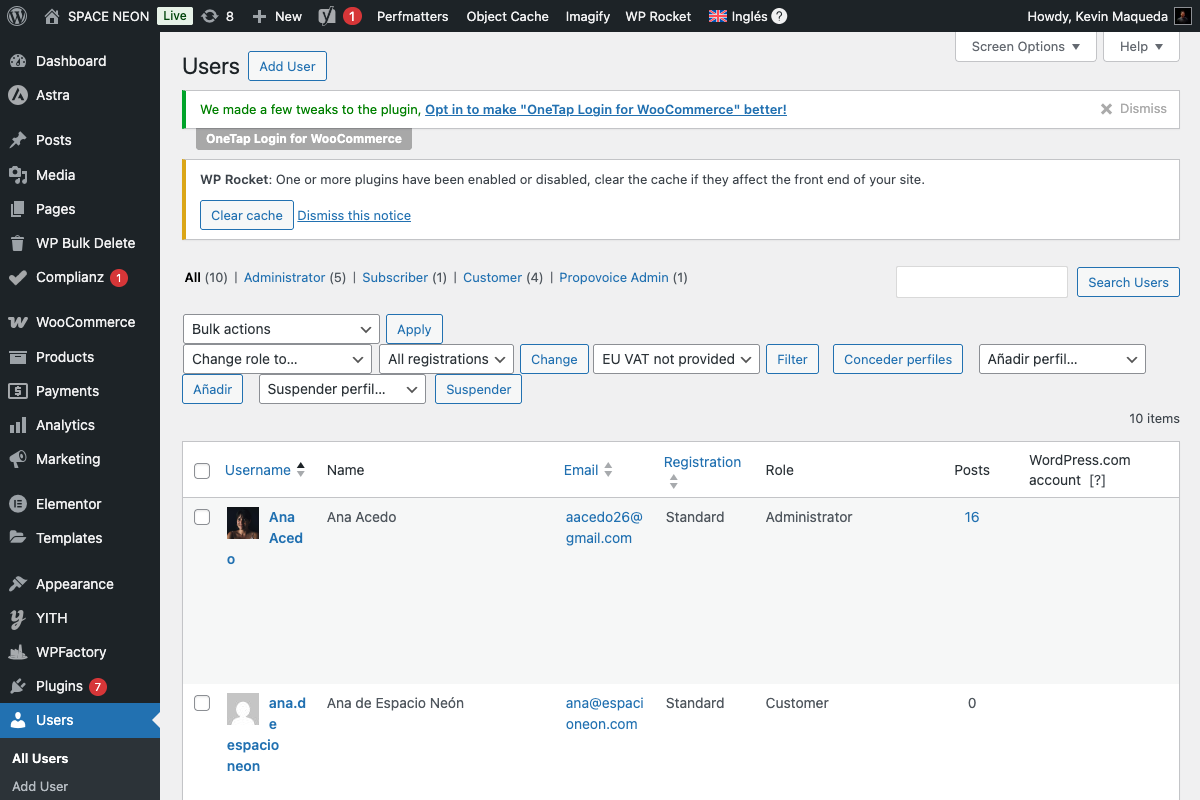
| Filter | Shows |
|---|---|
| All | All users |
| Only Google sign-in users | |
| Standard | Only form-registered users |
Sortable Column
Click column header to sort:
- Click once: Sort A-Z
- Click again: Sort Z-A
Using the Column
Finding Google Users
- Go to Users > All Users
- Look at "Registered Via" column
- Or use filter dropdown
Quick Stats
At a glance, see:
- How many Google users
- Registration source distribution
- Adoption of Google sign-in
User Management
Quickly identify:
- New Google registrations
- Users to migrate to Google
- Mixed authentication users
Column Data Source
The column reads from user meta:
| Meta Key | Value |
|---|---|
_onetap_registered_via | "google" |
_onetap_google_id | Google user ID |
_onetap_first_login | Timestamp |
Configuration
Enable/Disable
The column is enabled automatically with PRO. To hide:
- Go to Screen Options (top right)
- Uncheck "Registered Via"
Column Position
The column appears after "Role" by default.
To change position (developer):
add_filter('manage_users_columns', function($columns) {
    // Reorder columns
    $new_columns = [];
    foreach ($columns as $key => $value) {
        $new_columns[$key] = $value;
        if ($key === 'email') {
            $new_columns['onetap_source'] = $columns['onetap_source'];
            unset($columns['onetap_source']);
        }
    }
    return $new_columns;
}, 20);
Filter Integration
Using with Other Filters
Combine with WordPress filters:
- Select "Google" from Registered Via filter
- Select "Customer" from Role filter
- View: Google-registered customers
Search Integration
The search box works alongside filters:
- Search by name/email
- Apply source filter
- Combined results
Export Considerations
Standard WordPress Export
WordPress export (Tools > Export) doesn't include user meta.
User Export Plugins
For full data export:
- Use user export plugin
- Include meta fields
- Export
_onetap_registered_via
CSV for Analysis
Create report of Google users:
- Filter to "Google" users
- Use export plugin
- Analyze in spreadsheet
Hooks for Developers
Customize Column Content
add_filter('onetap_admin_column_output', function($output, $user_id) {
    // Add login count
    $count = get_user_meta($user_id, '_onetap_login_count', true);
    if ($count) {
        $output .= " ({$count} logins)";
    }
    return $output;
}, 10, 2);
Add Additional Column
add_filter('manage_users_columns', function($columns) {
    $columns['onetap_logins'] = 'Google Logins';
    return $columns;
});

add_action('manage_users_custom_column', function($output, $column, $user_id) {
    if ($column === 'onetap_logins') {
        $count = get_user_meta($user_id, '_onetap_login_count', true) ?: 0;
        return $count;
    }
    return $output;
}, 10, 3);
Troubleshooting
Column Not Showing
Causes:
- PRO not activated
- Hidden via Screen Options
- Theme/plugin conflict
Solutions:
- Verify PRO license
- Check Screen Options
- Test with default theme
Wrong Registration Source
Causes:
- User registered before plugin
- Meta data missing
- Manual account creation
Solutions:
- Can't retroactively determine source
- "Standard" is default for unknown
- Admin-created shows appropriately
Filter Not Working
Causes:
- Caching issue
- Meta data not set
- Plugin conflict
Solutions:
- Clear admin cache
- Verify meta exists
- Test with plugins disabled
Performance
Query Optimization
The column uses optimized queries:
- Single meta query per page
- Cached results
- Minimal overhead
Large User Bases
For sites with many users:
- Pagination handles load
- Column data loads with page
- No performance impact
Integration with Statistics
Correlation with Analytics
Compare:
- Admin column: Individual users
- Statistics tab: Aggregate data
Verify Stats
Use column to spot-check:
- Filter to today's Google users
- Count results
- Compare with Statistics
Best Practices
Regular Review
- Check Google adoption weekly
- Identify trends
- Spot unusual activity
User Communication
Knowing registration source helps:
- Target Google users for feedback
- Exclude from password reminders
- Segment for campaigns
Security Monitoring
Watch for:
- Sudden spikes in Google registrations
- Unusual patterns
- Potential abuse
Next Steps
- Basic Statistics - Aggregate data
- Analytics Dashboard - Visual charts
- User Settings - Configuration