Welcome Email Editor
The Welcome Email Editor lets you customize the email sent to new users who register via Google sign-in. Choose from pre-built templates, use merge tags, and preview before sending.
PRO Feature
Welcome Email Editor is a PRO feature. Upgrade to PRO to unlock this functionality.
How It Works
User registers via Google
        ↓
WordPress account created
        ↓
Welcome email triggered
        ↓
Template rendered with merge tags
        ↓
Email sent via WordPress/WooCommerce
Configuration
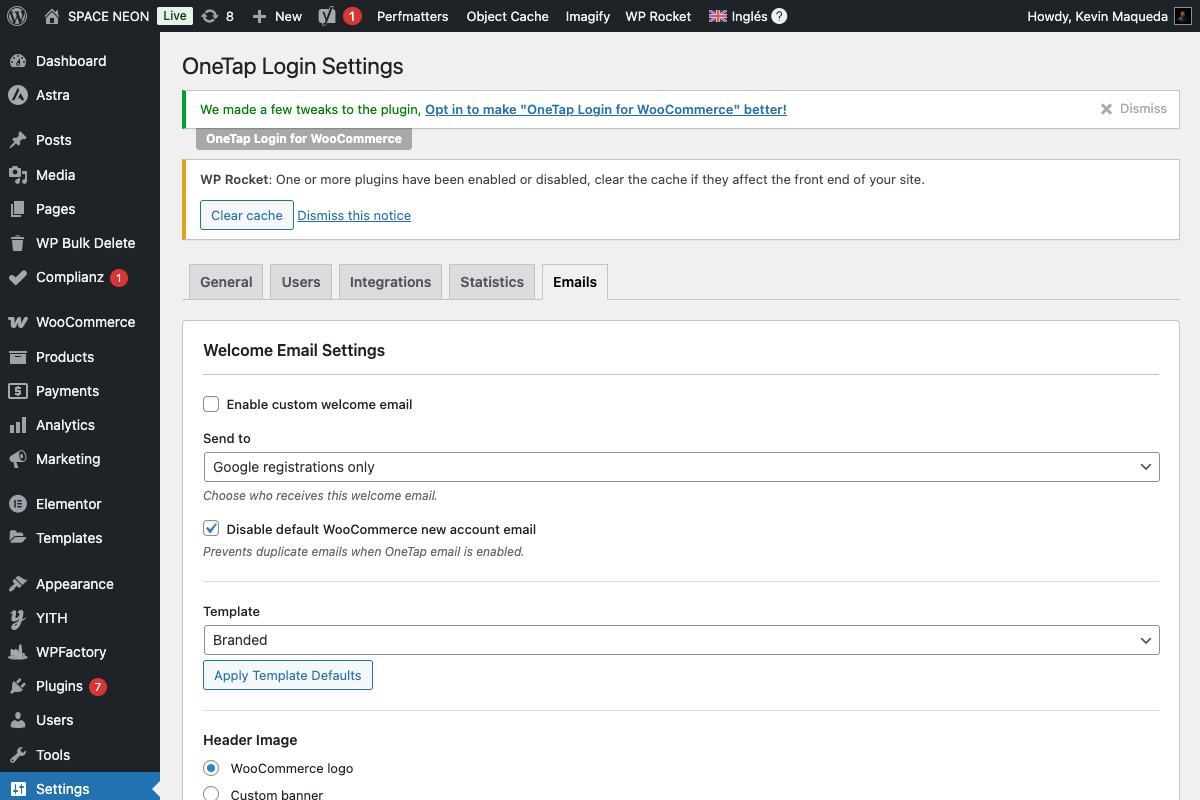
Accessing the Editor
- Go to Settings > OneTap Login
- Click Emails tab
- Find the Welcome Email section
Basic Settings
| Setting | Description |
|---|---|
| Enable Welcome Email | Toggle email on/off |
| Subject Line | Email subject with merge tags |
| Template | Pre-built template selection |
| Custom Content | Your message content |
Pre-Built Templates
Choose from 4 professional templates:
1. Minimal
- Clean, lightweight design
- Fast to load
- Basic branding
- Best for: Simple stores, tech products
2. Branded
- Professional design
- Logo placement
- Brand colors
- Best for: Established brands, corporate
3. Modern
- Contemporary styling
- Bold typography
- Visual hierarchy
- Best for: Fashion, lifestyle brands
4. Classic
- Traditional email layout
- Familiar structure
- Conservative design
- Best for: Professional services, B2B
Merge Tags
Personalize emails with dynamic content:
Available Tags
| Tag | Output | Example |
|---|---|---|
{first_name} | User's first name | "John" |
{last_name} | User's last name | "Smith" |
{email} | User's email | "john@gmail.com" |
{display_name} | Display name | "John Smith" |
{site_name} | Site title | "My Store" |
{site_url} | Site URL | "https://mystore.com" |
{shop_url} | Shop page URL | "https://mystore.com/shop" |
{account_url} | My Account URL | "https://mystore.com/my-account" |
{current_date} | Today's date | "January 15, 2024" |
Usage Example
Subject:
Welcome to {site_name}, {first_name}!
Body:
<p>Hi {first_name},</p>

<p>Thanks for joining {site_name}! Your account is ready.</p>

<p>
  <a href="{shop_url}">Start Shopping</a> |
  <a href="{account_url}">View Account</a>
</p>

<p>Best regards,<br>The {site_name} Team</p>
Email Editor
Content Editor
The editor supports:
- Rich text formatting
- HTML editing
- Merge tag insertion
- Link creation
Toolbar Options
- Bold, Italic, Underline
- Headings (H1-H6)
- Lists (bullet, numbered)
- Links
- Images
- HTML source
Preview
Live Preview Panel
See your email as users will:
- Real-time updates
- Merge tags rendered
- Template styling applied
- Desktop/mobile views
Send Test Email
- Enter test email address
- Click "Send Test"
- Check your inbox
- Verify formatting
URL-Based Rules (Advanced)
Send different emails based on signup page:
Rule Types
| Rule | Matches |
|---|---|
| Exact | Exact URL match |
| Contains | URL contains string |
| Starts with | URL starts with path |
| Regex | Regular expression |
Example Rules
Rule 1: URL contains "/checkout"
→ Use "Purchase Thank You" template

Rule 2: URL contains "/promo"
→ Use "Promo Welcome" template

Default:
→ Use standard welcome template
Email Delivery
Sending Method
Emails are sent via:
- WooCommerce email system (if active)
- WordPress wp_mail() function
- Your configured SMTP plugin
Recommended Setup
For reliable delivery:
- Use SMTP plugin (WP Mail SMTP, etc.)
- Configure SPF/DKIM records
- Monitor deliverability
Hooks for Developers
Filter Email Content
add_filter('onetap_welcome_email_content', function($content, $user) {
    // Modify content
    $content .= "<p>Your referral code: REF{$user->ID}</p>";
    return $content;
}, 10, 2);
Filter Subject
add_filter('onetap_welcome_email_subject', function($subject, $user) {
    return "🎉 " . $subject; // Add emoji
}, 10, 2);
Disable for Certain Users
add_filter('onetap_send_welcome_email', function($send, $user) {
    // Don't send to admins
    if (in_array('administrator', $user->roles)) {
        return false;
    }
    return $send;
}, 10, 2);
WooCommerce Integration
Email Template Location
Templates stored in:
wp-content/plugins/onetap-login/templates/emails/
Override in Theme
Copy to your theme:
wp-content/themes/your-theme/woocommerce/emails/onetap-welcome.php
WooCommerce Email Settings
The welcome email appears in WooCommerce > Settings > Emails.
Troubleshooting
Email Not Sending
Causes:
- Welcome email disabled
- WordPress email not working
- SMTP not configured
Solutions:
- Enable welcome email in settings
- Test with WP Mail SMTP
- Check server email logs
Merge Tags Not Rendering
Causes:
- Typo in tag name
- Missing curly braces
- Extra spaces
Solutions:
- Copy tag from list
- Use exact format:
{tag_name} - Remove extra whitespace
Email Goes to Spam
Causes:
- No SMTP configuration
- Missing SPF/DKIM
- Spammy content
Solutions:
- Configure SMTP plugin
- Set up email authentication
- Review content for spam triggers
Styling Broken
Causes:
- Email client limitations
- Unsupported CSS
- Missing inline styles
Solutions:
- Use table-based layouts
- Inline CSS styles
- Test in multiple clients
Best Practices
Content
- Keep subject under 50 characters
- Personalize with first name
- Include clear CTA
- Keep body concise
Design
- Use simple layouts
- Stick to web-safe fonts
- Test on mobile
- Use alt text for images
Delivery
- Configure SMTP
- Monitor bounce rates
- Include unsubscribe link
- Test before launch
Settings Summary
| Setting | Type | Default |
|---|---|---|
| Enable Welcome Email | Toggle | On |
| Subject | Text + tags | "Welcome to {site_name}!" |
| Template | Select | Minimal |
| Content | Rich text | Default welcome message |
| URL Rules | Multiple | None |
Next Steps
- Email Marketing - ESP integrations
- Marketing Consent - GDPR consent
- Custom Redirects - Post-signup destinations