Settings Import/Export
Settings Transfer allows you to export OneTap Login configuration from one site and import it to another. Useful for staging-to-production workflows, multi-site management, and backups.
PRO Feature
Settings Import/Export is a PRO feature. Upgrade to PRO to unlock this functionality.
What's Included
Exported Settings
| Category | Settings |
|---|---|
| General | One Tap settings, button config |
| Users | Default role, auto-register, redirects |
| Buttons | Theme, shape, text, locations |
| Errors | Custom error messages |
| Integrations | Webhooks (URL only), email marketing provider |
NOT Exported (Security)
| Setting | Reason |
|---|---|
| Client ID | Site-specific credential |
| Client Secret | Sensitive credential |
| API Keys | Email marketing credentials |
| Webhook Secret | Security key |
| License Key | Freemius license |
Re-enter Credentials
After importing, you must re-enter API credentials for security.
Export Settings
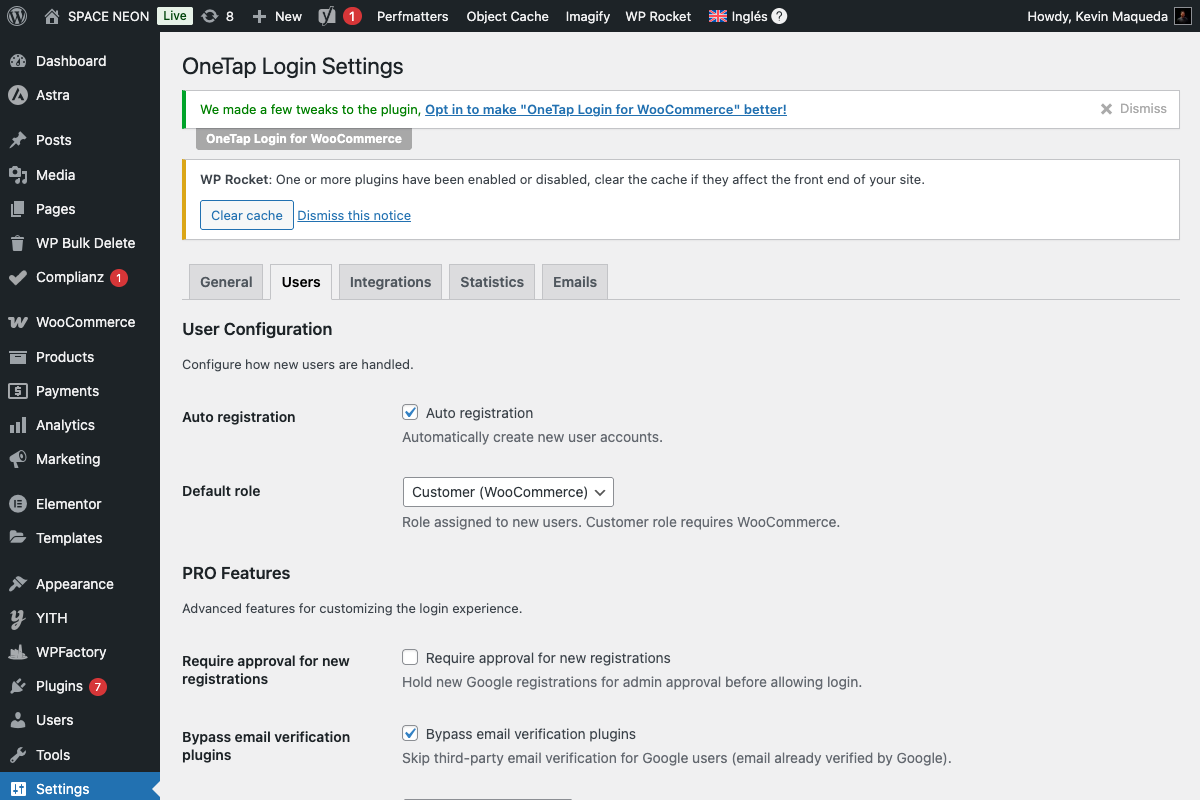
Step-by-Step Export
- Go to Settings > OneTap Login
- Click Tools tab (or find export in sidebar)
- Click Export Settings
- Save the JSON file
Export File
The download is a JSON file:
onetap-settings-2024-01-15.json
File Contents
{
  "version": "1.0.0",
  "exported_at": "2024-01-15T10:30:00Z",
  "site_url": "https://source-site.com",
  "settings": {
    "enable_one_tap": true,
    "button_theme": "filled_blue",
    "button_shape": "pill",
    "button_text": "continue_with",
    "enable_button_myaccount": true,
    "auto_register": true,
    "default_role": "customer",
    "error_popup_closed": "The sign-in popup was closed.",
    ...
  }
}
Import Settings
Step-by-Step Import
- Go to Settings > OneTap Login on destination site
- Click Tools tab
- Click Import Settings
- Select your JSON file
- Click Upload and Import
- Review imported settings
- Re-enter API credentials
Import Confirmation
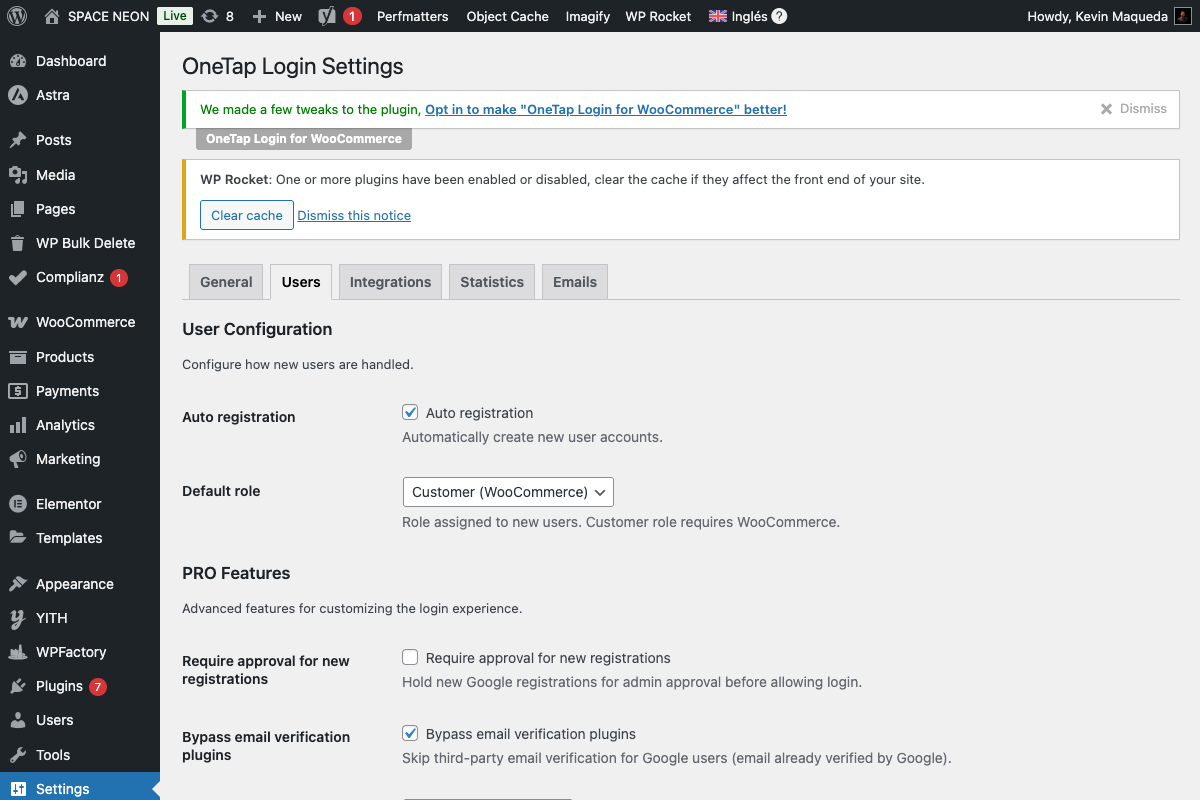
After import, you'll see:
- List of imported settings
- Warning about missing credentials
- Link to enter API keys
Post-Import Checklist
- Enter Client ID
- Enter Client Secret
- Enter webhook secret (if using)
- Enter email marketing API keys
- Test connection
- Verify frontend display
Use Cases
Staging to Production
Development Site
      ↓
Export settings
      ↓
Production Site
      ↓
Import settings
      ↓
Enter production credentials
Multi-Site Management
Template Site (configured)
      ↓
Export settings
      ↓
Site A: Import + credentials
Site B: Import + credentials
Site C: Import + credentials
Backup Before Changes
Current working config
      ↓
Export as backup
      ↓
Make changes
      ↓
If issues: Import backup
Team Collaboration
Developer A: Configure settings
      ↓
Export JSON
      ↓
Share via Git/email
      ↓
Developer B: Import settings
File Format
Structure
{
  "version": "string",
  "exported_at": "ISO 8601",
  "site_url": "string",
  "settings": {
    "key": "value",
    ...
  }
}
Version Compatibility
| Export Version | Import Compatibility |
|---|---|
| 1.0.x | 1.0.x and later |
| Future | Backward compatible |
Old exports work with new plugin versions.
Handling Differences
Different WooCommerce Status
If WooCommerce status differs:
- WC-specific settings still import
- May show warnings
- Features activate when WC installed
Different URL Structures
Redirect URLs import as-is:
- Verify paths exist on new site
- Update if URL structure differs
Different Roles
Roles must exist on destination:
- WordPress core roles always exist
- Custom roles may need creation
- Role mapping imports but may need review
Security Considerations
Why Credentials Are Excluded
- Site-specific: Client ID is tied to domain
- Security: Prevents credential exposure
- Best practice: Secrets shouldn't be in files
Sharing Export Files
Safe to share:
- Via private channels
- Within your team
- In version control (no secrets)
Don't share:
- Publicly
- In support requests (redact first)
Audit After Import
Review imported settings:
- Check nothing unexpected changed
- Verify integration settings
- Test functionality
Troubleshooting
Import Fails
Causes:
- Invalid JSON format
- File corrupted
- Version incompatible
Solutions:
- Verify JSON is valid
- Re-export from source
- Update plugin on both sites
Settings Not Applying
Causes:
- Cache showing old settings
- Import partial
- Override by other plugin
Solutions:
- Clear all caches
- Re-import
- Check for conflicts
Missing Settings After Import
Causes:
- Settings added in newer version
- PRO settings on FREE site
- Export from older version
Solutions:
- Manually configure missing
- Upgrade to PRO
- Export from current version
Developer Notes
Filter Exported Data
add_filter('onetap_export_settings', function($settings) {
    // Add custom data
    $settings['custom_setting'] = get_option('my_custom_option');
    return $settings;
});
Filter Imported Data
add_filter('onetap_import_settings', function($settings) {
    // Modify on import
    $settings['button_theme'] = 'outline'; // Force theme
    return $settings;
});
Hooks
// After export
do_action('onetap_settings_exported', $settings);

// After import
do_action('onetap_settings_imported', $settings);
Best Practices
Regular Backups
- Export before major changes
- Keep dated backups
- Store securely
Version Control
- Include exports in Git (no secrets)
- Document configuration changes
- Review diffs
Documentation
- Note site-specific credentials
- Document customizations
- Keep import checklist
Next Steps
- General Settings - Configuration options
- Connection Test - Verify after import
- Troubleshooting - Solve issues