Connection Test
OneTap Login includes a built-in Connection Test tool that runs 5 diagnostic checks to verify your Google OAuth configuration is working correctly.
What It Tests
The Connection Test performs 5 checks:
| # | Check | What It Verifies |
|---|---|---|
| 1 | Client ID Format | Your Client ID matches Google's format |
| 2 | Client Secret Format | Your Client Secret is valid (optional) |
| 3 | HTTPS Enabled | Your site uses SSL |
| 4 | REST API | WordPress REST API is accessible |
| 5 | Google Connection | Server can reach Google |
Running the Test
Step 1: Access Settings
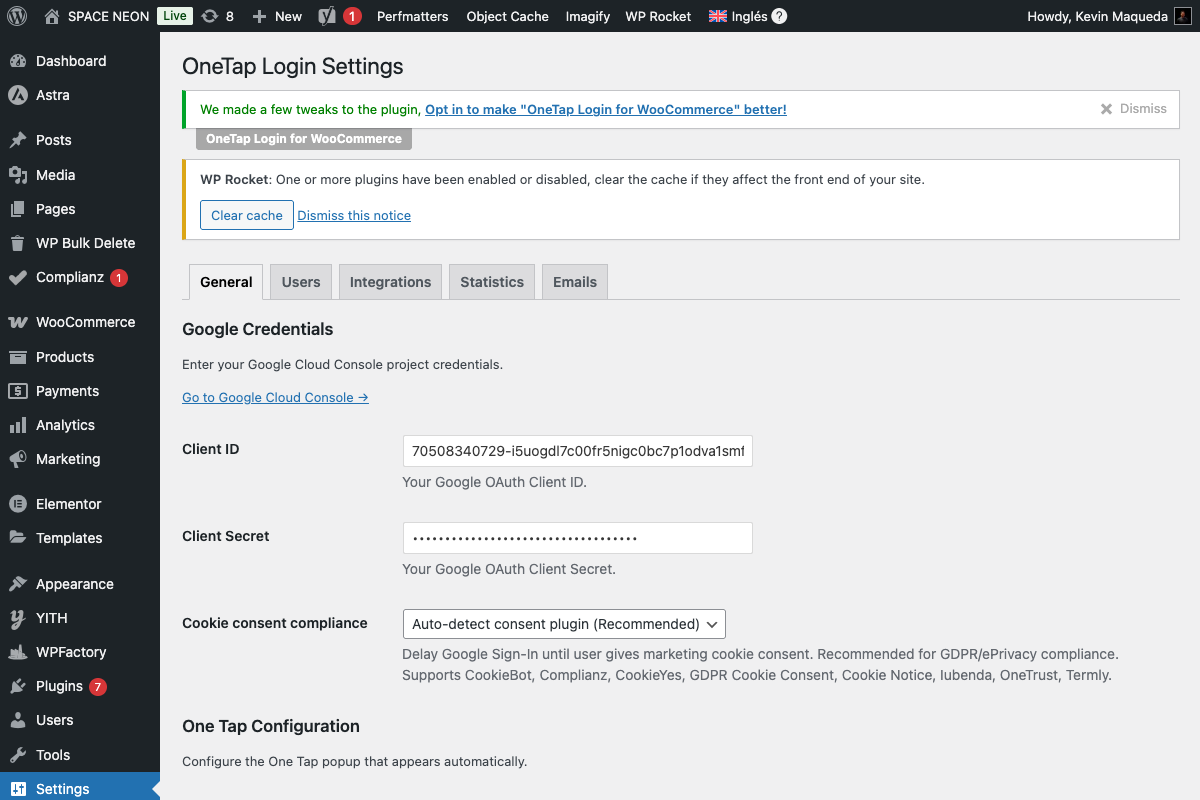
- Go to Settings > OneTap Login
- Look for the API Credentials section
Step 2: Click Test Connection
- Find the Test Connection button
- Click it
- Wait 2-5 seconds for results
Step 3: Review Results
A panel expands showing all 5 checks with status indicators:
| Icon | Status | Meaning |
|---|---|---|
| ✅ Green | Passed | Check successful |
| ❌ Red | Failed | Check failed, needs attention |
| ⚠️ Yellow | Warning | Check passed with concerns |
| ⏭️ Gray | Skipped | Not applicable |
Check Details
Check 1: Client ID Format
What it verifies: The Client ID matches Google's expected format.
Expected format:
[numbers]-[alphanumeric].apps.googleusercontent.com
Example valid ID:
123456789012-abcdefghijklmnopqrstuvwxyz123456.apps.googleusercontent.com
Common failures:
| Issue | Solution |
|---|---|
| Missing | Enter your Client ID |
| Extra spaces | Remove leading/trailing spaces |
| Incomplete | Copy the full ID |
| Wrong credential | Use Web application type |
Check 2: Client Secret Format
What it verifies: The Client Secret matches Google's expected format.
Expected format:
GOCSPX-[alphanumeric]
Example valid secret:
GOCSPX-abcdefghijklmnopqrstuvwxyz12
Status possibilities:
| Status | Meaning |
|---|---|
| ✅ Valid | Secret format correct |
| ⏭️ Skipped | Field is empty (OK for basic usage) |
| ❌ Invalid | Format doesn't match |
The Client Secret is optional for basic One Tap functionality. This check shows "Skipped" if the field is empty, which is acceptable.
Check 3: HTTPS Enabled
What it verifies: Your site URL uses HTTPS.
How it checks:
$site_url = get_site_url();
$is_https = strpos($site_url, 'https://') === 0;
Common failures:
| Issue | Solution |
|---|---|
| HTTP site | Install SSL certificate |
| Mixed content | Fix HTTP resources on HTTPS pages |
| Wrong URL settings | Update WordPress URLs in Settings > General |
Google requires HTTPS for all OAuth implementations. There is no workaround.
Check 4: REST API Available
What it verifies: The WordPress REST API is accessible and working.
How it checks:
$response = wp_remote_get(rest_url('onetap/v1/status'));
$is_available = !is_wp_error($response) && $response['response']['code'] === 200;
Common failures:
| Issue | Solution |
|---|---|
| Security plugin blocking | Whitelist /wp-json/onetap/ |
| Permalinks issue | Re-save permalinks |
| Server configuration | Check .htaccess rules |
| WAF blocking | Add exception for REST API |
Check 5: Google Connection
What it verifies: Your server can reach Google's authentication servers.
How it checks:
$response = wp_remote_get('https://accounts.google.com');
$can_reach = !is_wp_error($response);
Common failures:
| Issue | Solution |
|---|---|
| Firewall blocking | Allow outbound HTTPS (port 443) |
| DNS issue | Check server DNS settings |
| Proxy required | Configure wp_http_proxy |
| Hosting restriction | Contact hosting provider |
Interpreting Results
All Green ✅
All checks passed. Your configuration is correct.
Next steps:
- Test actual sign-in on your site
- Use incognito window
- Visit My Account page
- Try One Tap and button
Some Red ❌
One or more checks failed. See specific check details above.
Order to fix:
- Client ID (if failed) - Most critical
- HTTPS (if failed) - Required by Google
- REST API (if failed) - Required for callback
- Google Connection (if failed) - Required for validation
Yellow Warning ⚠️
Check passed but with concerns:
- May indicate partial configuration
- May indicate potential issues
- Review the warning message
Gray Skipped ⏭️
Check was not run because:
- Not applicable (Client Secret when empty)
- Depends on failed check
- Optional feature
Troubleshooting by Check
Client ID Invalid
Steps to fix:
- Go to Google Cloud Console
- Navigate to APIs & Services > Credentials
- Click on your OAuth 2.0 Client ID
- Copy the entire Client ID value
- Paste into OneTap Login settings
- Run test again
Client Secret Invalid
Steps to fix:
- Go to Google Cloud Console
- Navigate to your OAuth credentials
- Copy the Client Secret
- Paste into OneTap Login settings
- Or leave empty if not needed
HTTPS Not Enabled
Steps to fix:
- Install SSL certificate:
- Use host's free SSL
- Use Cloudflare free SSL
- Use Let's Encrypt
- Update WordPress URLs:
- Settings > General
- Change both URLs to https://
- Run test again
REST API Unavailable
Steps to fix:
Check 1: Re-save permalinks
- Go to Settings > Permalinks
- Click Save Changes (no changes needed)
- Run test again
Check 2: Security plugin whitelist
Add to allowed endpoints:
/wp-json/onetap/v1/callback
/wp-json/onetap/v1/status
Check 3: Check .htaccess
# WordPress REST API
<IfModule mod_rewrite.c>
RewriteEngine On
RewriteBase /
RewriteRule ^wp-json/ - [L]
</IfModule>
Google Connection Failed
Steps to fix:
Check 1: Test server connectivity
# SSH into server
curl -I https://accounts.google.com
Check 2: Check firewall
- Ensure outbound HTTPS (port 443) is allowed
- Check for IP-based restrictions
Check 3: Contact hosting
- Some hosts restrict external API calls
- May need to whitelist Google domains
Running Tests Programmatically
For developers:
// Get test results
$results = OneTap_Connection_Test::run_all_tests();

// Check specific test
$https_passed = $results['https']['passed'];

// Get error message
$error_msg = $results['rest_api']['message'];
When to Run Tests
Run Connection Test when:
- First setting up the plugin
- After changing credentials
- After changing server/hosting
- After installing security plugins
- When sign-in stops working
- Before contacting support
Support Information
If tests fail and you can't resolve:
- Screenshot the test results
- Note any error messages
- Check server error logs
- Contact support with:
- Test results screenshot
- WordPress version
- PHP version
- Active plugins list
- Hosting provider
Related Documentation
- First Configuration - Initial setup
- Google Cloud Setup - Create credentials
- Troubleshooting - Common problems
- REST API Errors - API issues