Sign-In Button
The Sign-In Button provides a traditional "Sign in with Google" experience. It serves as a reliable fallback when One Tap isn't available and gives users an explicit action to take.
What Is the Sign-In Button?
The Sign-In Button is:
- A Google-branded button on your login forms
- A clickable element that triggers Google authentication
- A fallback when One Tap doesn't appear
- Compatible with all browsers
Button vs One Tap
| Feature | Sign-In Button | One Tap |
|---|---|---|
| User action | Click required | Appears automatically |
| Visibility | Always visible | Conditional |
| Redirect | Mini popup window | No redirect |
| Clicks to login | 2-3 | 1 |
| Works everywhere | Yes | Only when Google session exists |
When Button Is Used
The button appears and is used when:
- One Tap dismissed: User closed the One Tap popup
- No Google session: User not signed into Google
- Cooldown active: One Tap in cooldown period
- One Tap disabled: Only button enabled in settings
- Browser incompatible: One Tap not supported
Configuration
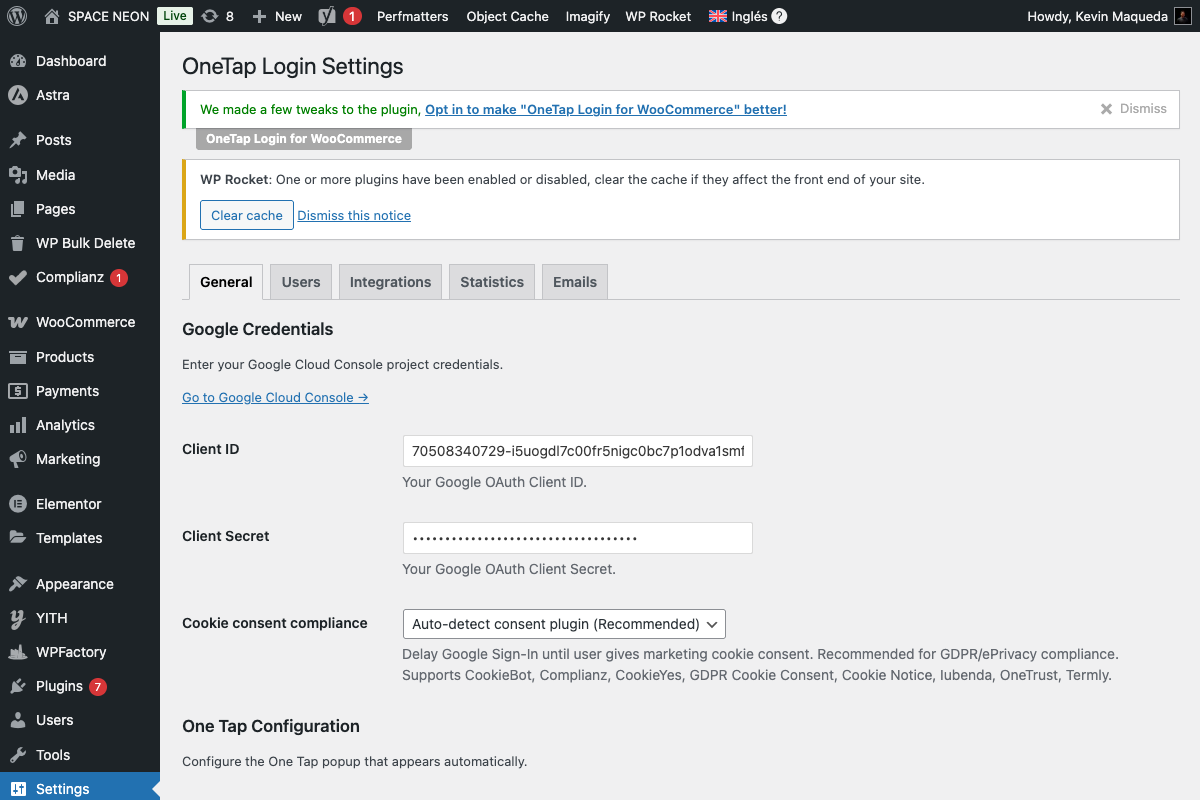
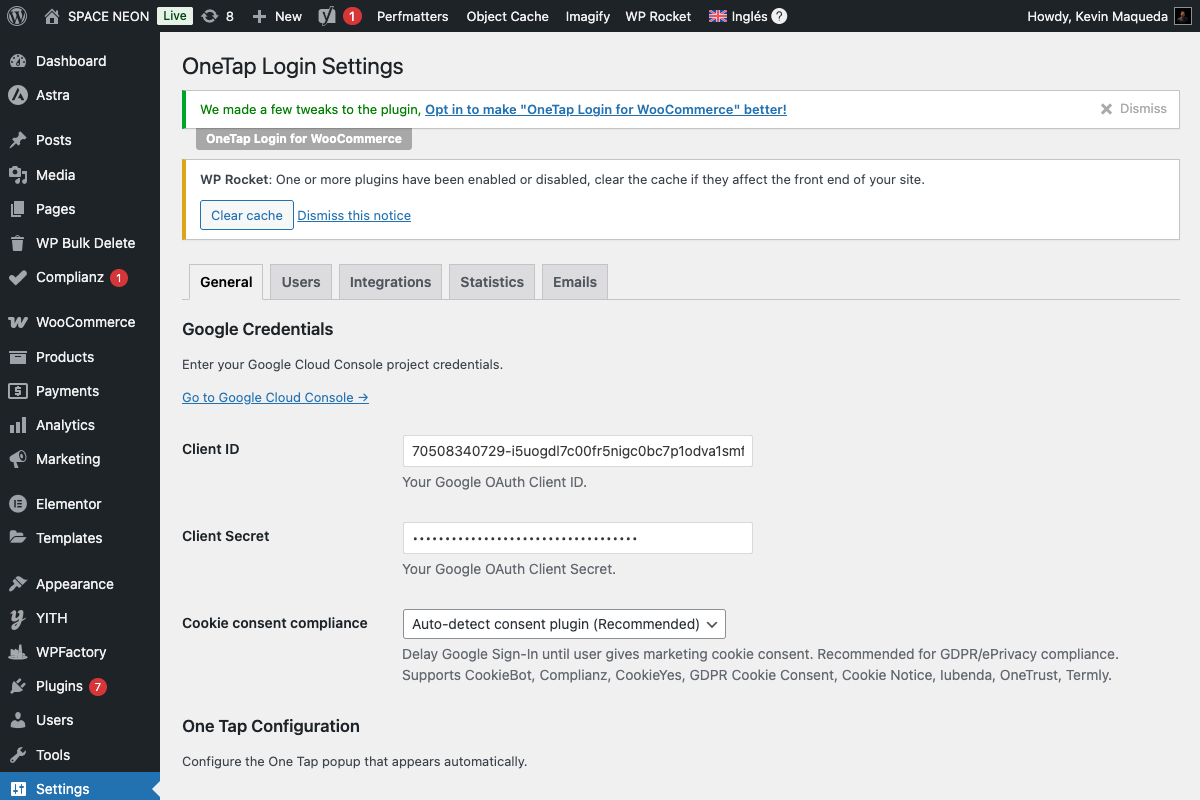
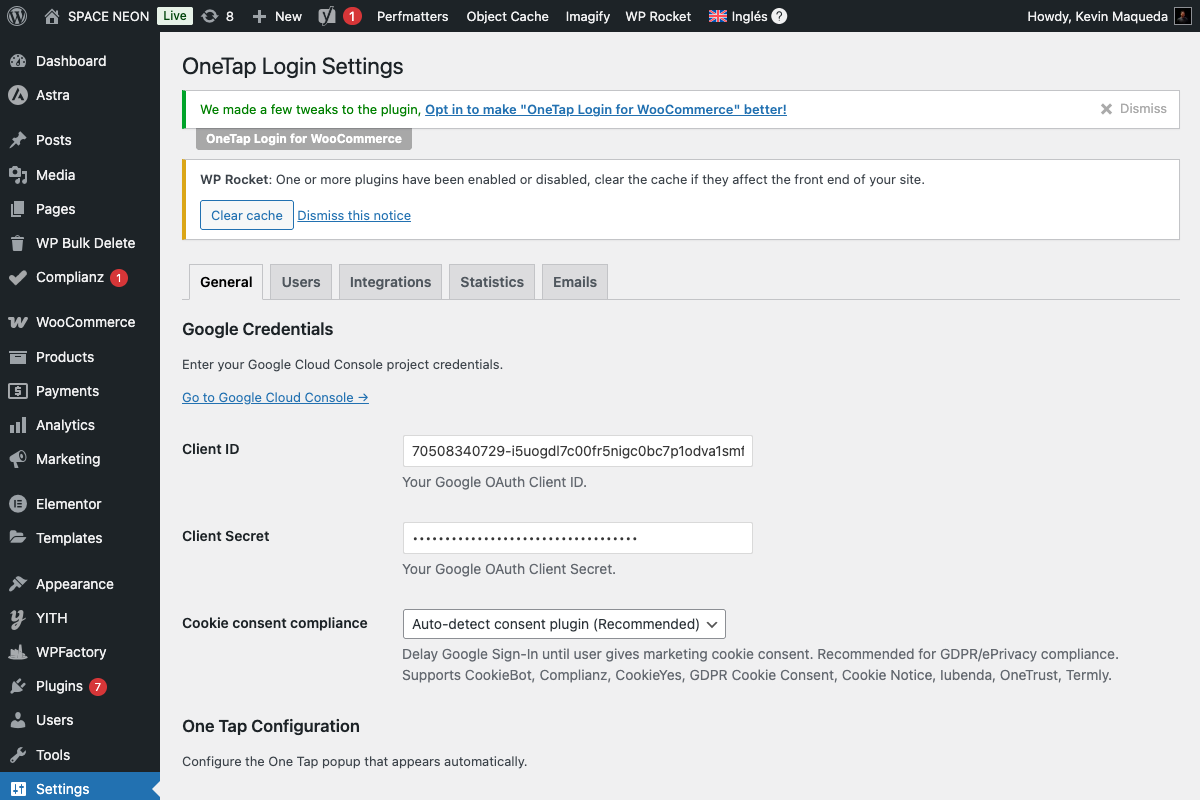
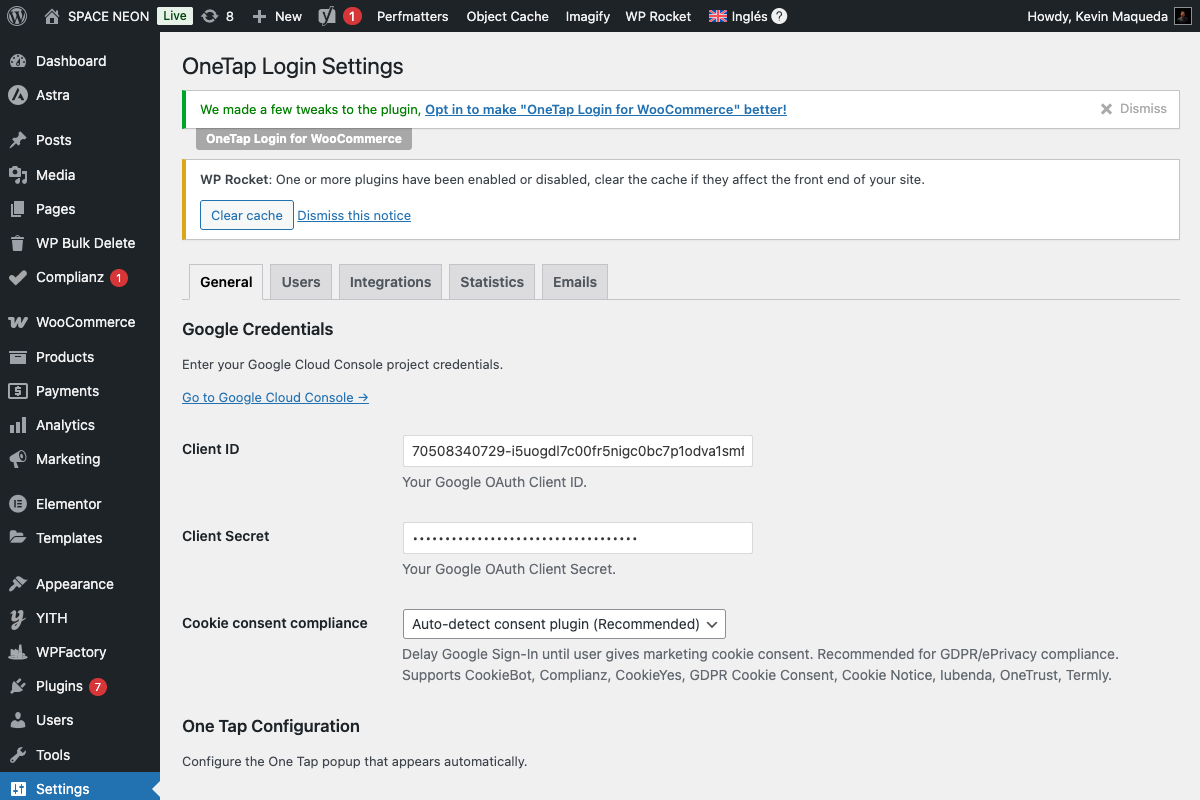
Enable the Button
- Go to Settings > OneTap Login
- In Button Configuration section
- Check Enable on My Account page
- Optionally enable other pages
- Save Changes
Button Locations
| Location | Setting | Default |
|---|---|---|
| My Account | Enable on My Account | On |
| Checkout | Enable on Checkout | Off (PRO) |
| Cart | Enable on Cart | Off (PRO) |
| wp-login.php | Enable on wp-login.php | Off |
Button Appearance
Default Appearance
The default button displays:
- Google "G" logo
- "Continue with Google" text
- Blue background (#4285F4)
- Pill shape (rounded corners)
Customization Options
| Option | Values | Default |
|---|---|---|
| Text | 4 options | continue_with |
| Theme | 3 options | filled_blue |
| Shape | 2 options | pill |
See Button Customization for all options.
Button Text Options
| Value | Display |
|---|---|
continue_with | "Continue with Google" |
signin_with | "Sign in with Google" |
signup_with | "Sign up with Google" |
signin | "Sign in" |
Button Themes
Outline (Light)
Theme: outline
- White background
- Gray border
- Dark text
- Best on dark backgrounds
Filled Blue
Theme: filled_blue
- Google blue background
- White text
- High visibility
- Default option
Filled Black
Theme: filled_black
- Black background
- White text
- Modern look
- Neutral branding
Button Shapes
Pill Shape
Shape: pill
- Fully rounded corners
- Modern appearance
- Friendly feel
Rectangular Shape
Shape: rectangular
- Square corners
- Traditional look
- Corporate feel
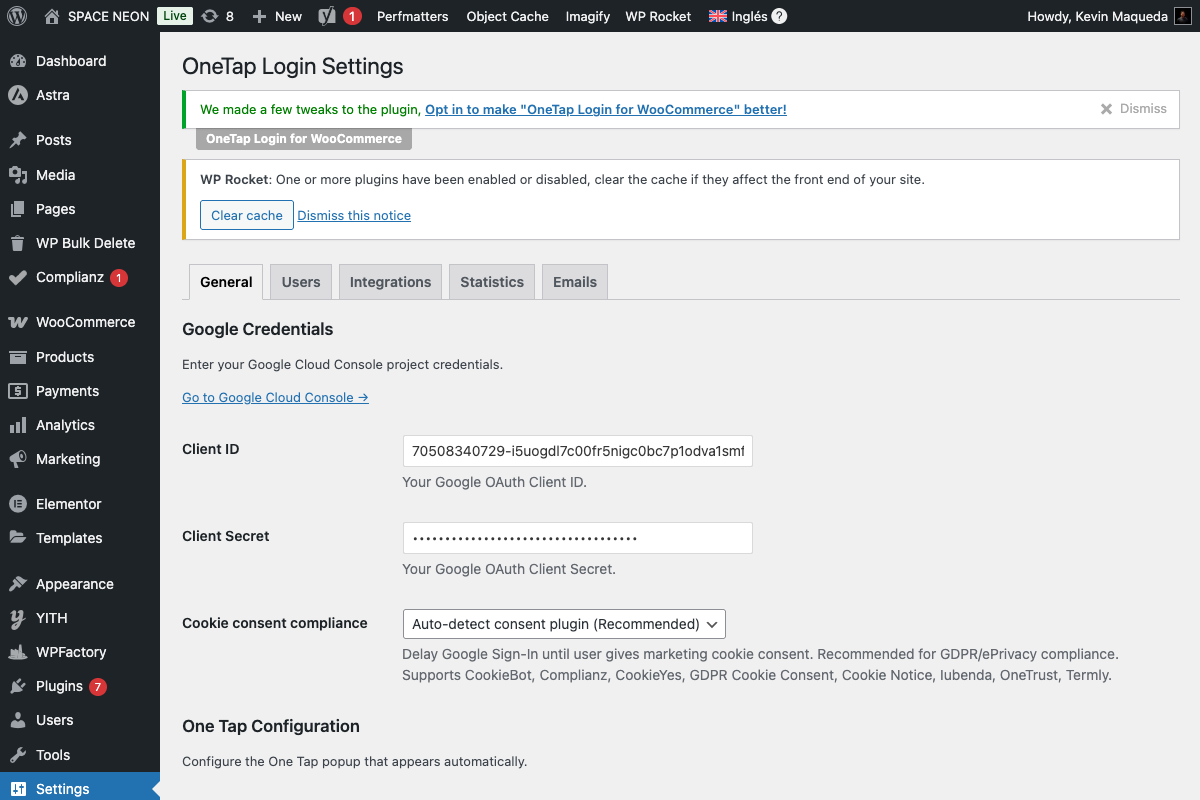
Button Placement
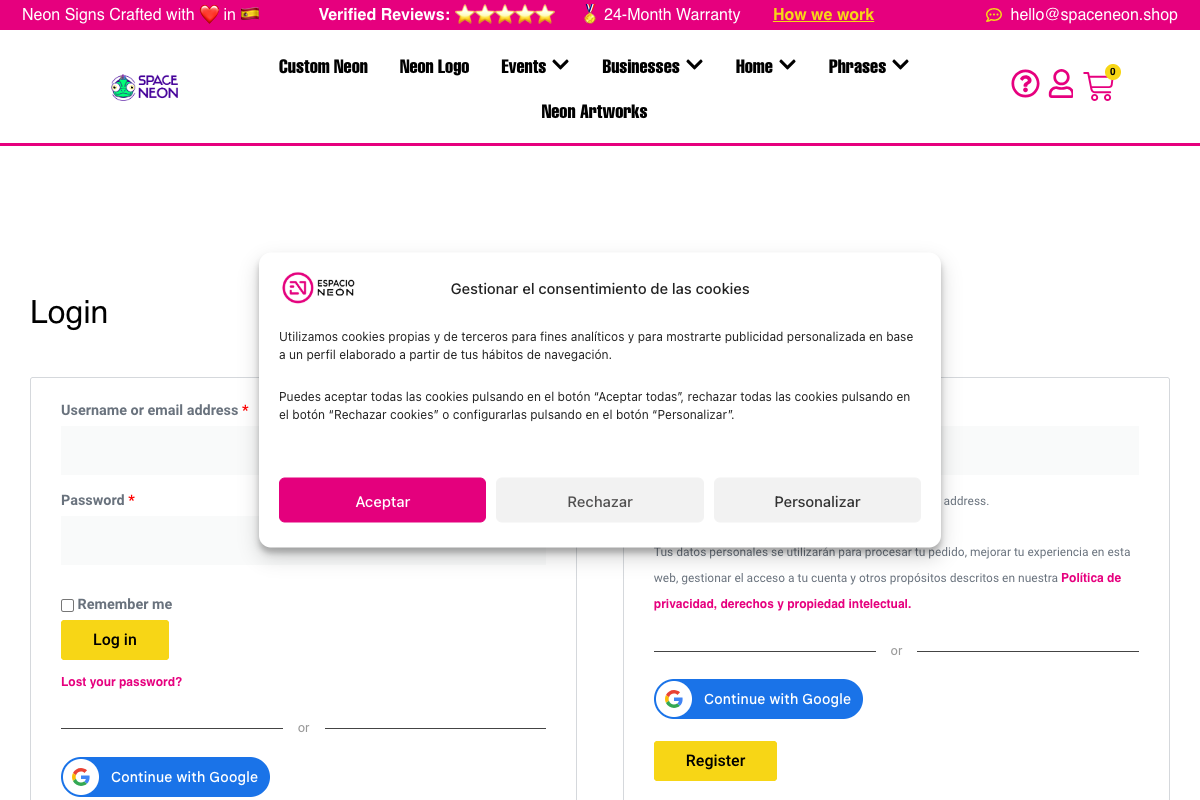
WooCommerce My Account
The button appears in the login form:
┌─────────────────────────────┐
│  Username                   │
│  [________________]         │
│                             │
│  Password                   │
│  [________________]         │
│                             │
│  [  Log In  ]               │
│                             │
│  ─────── or ───────         │
│                             │
│  [G Continue with Google]   │
└─────────────────────────────┘
WordPress Login (wp-login.php)
The button appears below the login form:
┌─────────────────────────────┐
│       WordPress             │
│                             │
│  Username                   │
│  [________________]         │
│                             │
│  Password                   │
│  [________________]         │
│                             │
│  [  Log In  ]               │
│                             │
│  ─────── or ───────         │
│                             │
│  [G Sign in with Google]    │
└─────────────────────────────┘
Click Flow
When a user clicks the button:
Step 1: Popup Opens
A small browser popup window opens with Google's account selection.
Step 2: Account Selection
User sees their Google accounts and selects one.
Step 3: Permission Grant
If first time, user grants permission to share email/profile.
Step 4: Popup Closes
After selection, popup automatically closes.
Step 5: Login Complete
User is logged into your site without page redirect.
Click Button → Popup → Select Account → Popup Closes → Logged In
Mobile Experience
On mobile devices:
Button Appearance
- Full width on small screens
- Larger touch target
- Optimized spacing
Authentication Flow
- Opens Google in new tab (not popup)
- User authenticates in Google
- Returns to your site
- Login completes
Popup Blockers
Issue
Some browsers or extensions block the Google popup.
Detection
The plugin detects when popup is blocked and shows a message.
Solution
Users can:
- Allow popups for your domain
- Click the button again after allowing
- Temporarily disable popup blocker
User Message
"Please allow popups for this site to sign in with Google."
Accessibility
The button is designed for accessibility:
Keyboard Navigation
- Tab-focusable
- Enter/Space to activate
- Focus ring visible
Screen Readers
- Proper ARIA labels
- Descriptive text
- Role="button"
Color Contrast
All themes meet WCAG AA contrast requirements.
Integration with Forms
WooCommerce Forms
The button integrates with:
- My Account login form
- Registration form
- Checkout login (PRO)
WordPress Forms
The button integrates with:
- wp-login.php
- Custom login pages (via shortcode)
Separator
A visual separator ("or") distinguishes the button:
.onetap-separator {
    display: flex;
    align-items: center;
    text-align: center;
}

.onetap-separator::before,
.onetap-separator::after {
    content: '';
    flex: 1;
    border-bottom: 1px solid #ddd;
}
Skeleton Loading
To prevent layout shift (CLS), a skeleton placeholder shows while the button loads:
How It Works
- Placeholder shows immediately
- Same size as final button
- Google button loads
- Placeholder replaced seamlessly
Error Handling
When authentication fails, the button displays error messages:
| Error | Message |
|---|---|
| Popup closed | "The sign-in popup was closed." |
| Access denied | "Access was denied. Please try again." |
| Network error | "Network error. Please check your connection." |
See Error Messages for customization.
Performance
Loading
- Button JavaScript is async
- No render blocking
- Loads after page content
Size
| Component | Size |
|---|---|
| Google GIS | ~15 KB |
| Button code | ~3 KB |
Speed
- Button appears in < 1 second
- Click response immediate
- Popup opens instantly
PRO Button Features
With OneTap Login PRO:
| Feature | Description |
|---|---|
| Button size | Large, medium, small |
| Button width | Auto, fixed, 100% |
| Button alignment | Left, center, right |
| Logo alignment | Left, center |
| Checkout placement | On checkout page |
| Cart placement | On cart page |
| Shortcode | [onetap_button] |
See Button Customization for details.
Troubleshooting
Button Not Showing
- Check if enabled in settings
- Verify on correct page
- Check for JavaScript errors
- Try different theme (Twenty Twenty-Four)
Button Doesn't Work
- Check popup blocker status
- Verify Client ID is correct
- Check browser console for errors
- Test in incognito window
Styling Issues
- Check for theme CSS conflicts
- Inspect element for overrides
- Add custom CSS if needed
- Contact support with screenshots
Next Steps
- Button Customization - Styling options
- Auto Registration - User creation
- Shortcode (PRO) - Custom placement