Account Linking
Account Linking automatically connects Google sign-ins to existing WordPress accounts when the email addresses match. This prevents duplicate accounts and provides a seamless experience for returning users.
How It Works
When a user signs in with Google:
User signs in with Google
        ↓
Plugin receives email from Google
        ↓
Check: Does email exist in WordPress?
        ↓
    YES → Link Google ID to existing account
        ↓
    NO → Create new account (if auto-register enabled)
        ↓
User logged in
Automatic Email Matching
The plugin matches Google email to WordPress email:
Match Found
// Lookup
$user = get_user_by('email', $google_email);

// If found
if ($user) {
    // Link Google ID to this user
    update_user_meta($user->ID, '_onetap_google_id', $google_id);
    // Log user in
    wp_set_current_user($user->ID);
}
Result: User logs into their existing account.
No Match Found
- New account created (if auto-register enabled)
- Or error shown (if auto-register disabled)
What Gets Linked
When linking occurs:
| Action | Details |
|---|---|
| Google ID stored | _onetap_google_id meta |
| Login count updated | Increments counter |
| Last login recorded | Timestamp saved |
| Avatar updated | Google profile picture |
Data NOT Changed
Linking preserves:
- Existing username
- Existing role
- Existing password
- Order history
- User meta
Use Cases
Scenario 1: Returning Customer
1. Customer registered manually months ago
2. Customer clicks "Sign in with Google"
3. Same email found
4. Google linked to existing account
5. Customer sees their order history
Scenario 2: Employee with Existing Account
1. Admin created account for employee
2. Employee clicks "Sign in with Google"
3. Work email matches
4. Google linked to their account
5. Employee retains admin-assigned role
Scenario 3: Multiple Google Accounts
1. User has two Google accounts
2. Signs in with primary Google (john@gmail.com)
3. Linked to WP account with john@gmail.com
4. Later signs in with work Google (john@company.com)
5. Creates new account (different email)
Security Considerations
Email Trust
Google verifies email ownership:
- User must control the Google account
- Email is verified by Google
- No email spoofing possible
No Password Required
When linking:
- Google authentication is sufficient
- No WordPress password needed
- Existing password preserved (can still use it)
Sensitive Roles
For users with sensitive roles:
| Role | Behavior |
|---|---|
| Administrator | Cannot use Google login |
| Editor | Cannot use Google login |
| Shop Manager | Cannot use Google login |
| Other roles | Can link and use Google |
Account Merge (PRO)
For additional security, PRO offers Account Merge:
What It Does
Instead of automatic linking:
- User sees merge prompt
- Must enter existing password
- Confirms they own both accounts
- Then accounts are linked
When to Use
- High-security environments
- Prevent unauthorized account takeover
- User verification required
See Account Merge for details.
Visual Comparison
Automatic Linking (FREE)
┌─────────────────────────────────────┐
│  Sign in with Google                │
│                                     │
│  [G Continue with Google]           │
│                                     │
│         ↓ Click                     │
│                                     │
│  Email matches → Logged in          │
│  (No prompt, automatic)             │
└─────────────────────────────────────┘
Account Merge (PRO)
┌─────────────────────────────────────┐
│  Account Found                      │
│                                     │
│  An account with john@gmail.com     │
│  already exists.                    │
│                                     │
│  Enter your password to link:       │
│  [________________]                 │
│                                     │
│  [  Link Accounts  ]  [ Cancel ]    │
└─────────────────────────────────────┘
Multiple Google Accounts
Same User, Different Emails
A user might have:
- Personal:
john@gmail.com - Work:
john@company.com
Each creates/links to different WordPress accounts.
Linking Multiple Googles to One WP Account
Currently:
- Only one Google ID per WordPress account
- Second Google would create new account
Workaround:
- Use Account Merge (PRO) to consolidate
- Or manually update user email
Checking Linked Status
For Users
Users can see their linked status:
- Go to My Account or Profile
- See "Connected with Google" indicator
- Or check user meta
For Admins
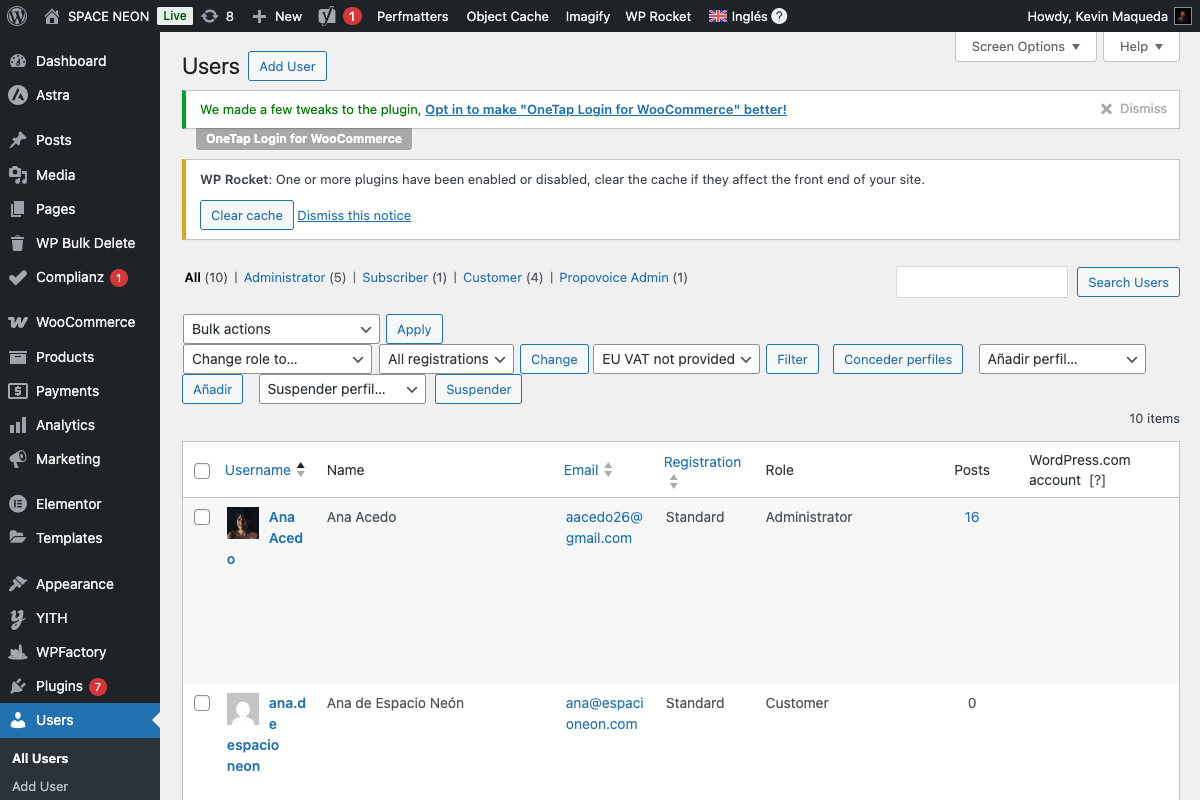
Admins can check in Users list:
- Go to Users > All Users
- Look for "Registered Via" column (PRO)
- Filter by Google users
Via Database
SELECT user_id, meta_value
FROM wp_usermeta
WHERE meta_key = '_onetap_google_id';
Unlinking Accounts
User-Initiated
Currently, users cannot unlink via UI. Options:
- Admin can remove meta
- Password reset still works
- Standard login still works
Admin-Initiated
// Remove Google link
delete_user_meta($user_id, '_onetap_google_id');
What Happens After Unlink
- User can still log in with password
- Next Google sign-in will re-link
- No data lost
Hooks for Developers
Before Linking
// Filter to allow/prevent linking
$allow_link = apply_filters(
    'onetap_allow_account_link',
    true,
    $user,
    $google_data
);
After Linking
// Action after account linked
do_action(
    'onetap_account_linked',
    $user_id,
    $google_data
);
Example: Notify admin of link
add_action('onetap_account_linked', function($user_id, $google_data) {
    wp_mail(
        get_option('admin_email'),
        'Account Linked',
        "User $user_id linked Google account"
    );
}, 10, 2);
Edge Cases
Email Changed in WordPress
If user changes WordPress email after linking:
- Google link remains (via Google ID)
- User can still sign in with Google
- Links to account by Google ID, not email
Email Changed in Google
If user changes Google email:
- Google ID remains the same
- Link still works
- Email in WordPress NOT auto-updated
Deleted WordPress Account
If WordPress account deleted:
- Google link gone with user
- Next sign-in creates new account
- No data recovery
Duplicate Emails
WordPress prevents duplicate emails:
- Each email can only exist once
- No conflict during linking
- If duplicate somehow exists, links to first found
Troubleshooting
"Email Already Registered" Error
Cause: Email exists but auto-register is off or there's a conflict.
Solutions:
- Enable auto-register (will link automatically)
- Check if Account Merge (PRO) is misconfigured
- Verify the existing account
Account Not Linking
Symptoms: New account created instead of linking.
Causes:
- Email doesn't match exactly (case sensitivity)
- Existing account has different email
- Plugin caching issue
Solutions:
- Check exact email in WordPress Users
- Verify Google email is same
- Clear caches and retry
Wrong Account Linked
Symptoms: Logged into different account than expected.
Causes:
- Multiple accounts with similar emails
- Email changed in one system
- Previous linking to different account
Solutions:
- Check which email is in WordPress
- Check Google ID in user meta
- Unlink and re-link if needed
Best Practices
Do's
- Keep auto-register enabled for seamless UX
- Use Account Merge (PRO) for high-security
- Monitor linking via admin tools
- Communicate to users about Google login
Don'ts
- Don't manually edit Google ID meta (usually)
- Don't assume email case sensitivity
- Don't disable linking without good reason
Next Steps
- Account Merge (PRO) - Secure linking
- Auto Registration - New user creation
- Basic Statistics - Track logins