CLS Prevention
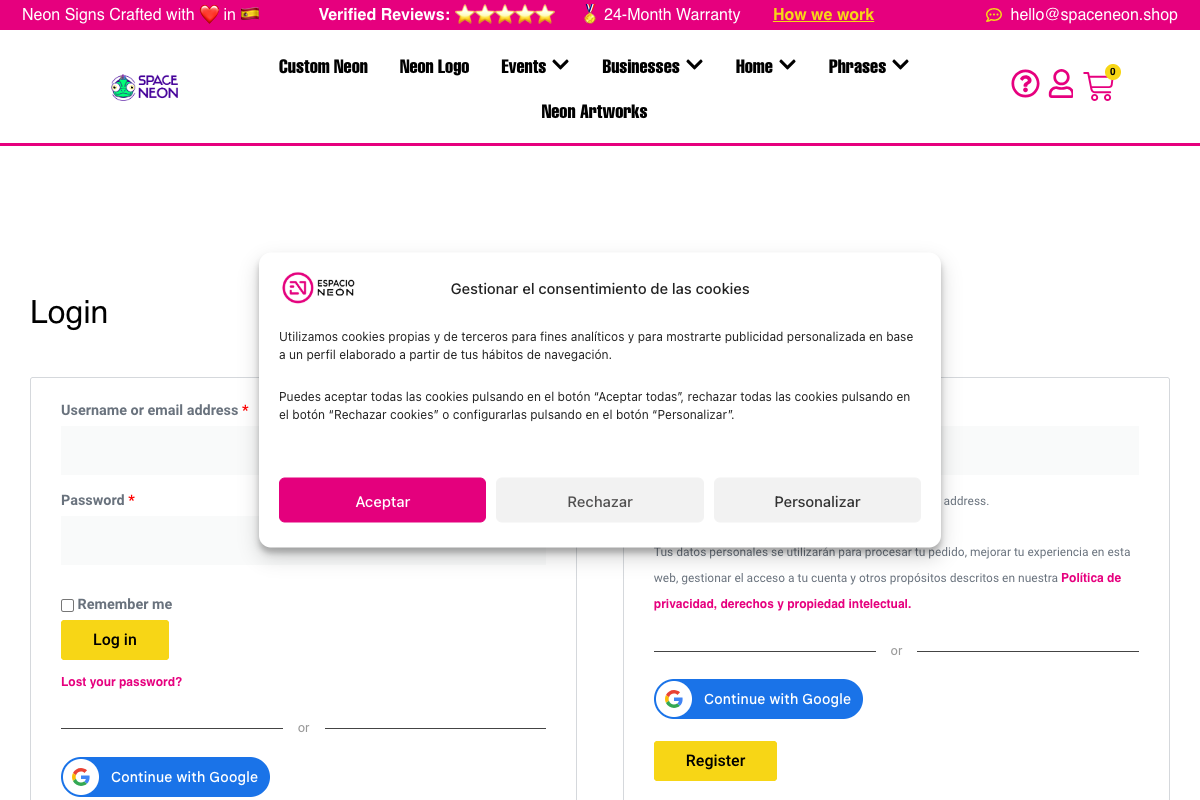
OneTap Login includes built-in Cumulative Layout Shift (CLS) prevention using skeleton placeholders. This ensures your Core Web Vitals scores remain high while loading the Google sign-in button.
What Is CLS?
Cumulative Layout Shift (CLS) is a Core Web Vitals metric that measures visual stability:
- Good: CLS < 0.1
- Needs Improvement: 0.1 - 0.25
- Poor: > 0.25
CLS occurs when page elements move after initial render, causing a jarring user experience.
The Problem Without Prevention
Without CLS prevention:
1. Page loads without Google button
2. User starts reading/interacting
3. Google JavaScript loads
4. Button appears, pushing content down
5. User frustrated, may click wrong thing
6. CLS score increases (bad)
The Solution: Skeleton Placeholders
OneTap Login uses skeleton placeholders:
1. Page loads with placeholder (same size as button)
2. Placeholder visible immediately
3. Google JavaScript loads
4. Button replaces placeholder (same size)
5. No content shift occurs
6. CLS score stays good
How It Works
Placeholder HTML
<div class="onetap-button-wrapper" style="min-height: 44px;">
    <div class="onetap-skeleton" aria-hidden="true">
        <!-- Skeleton placeholder -->
    </div>
    <div class="onetap-button" style="display: none;">
        <!-- Google button loads here -->
    </div>
</div>
Placeholder Styling
.onetap-skeleton {
    width: 200px;
    height: 44px;
    background: linear-gradient(90deg, #f0f0f0 25%, #e0e0e0 50%, #f0f0f0 75%);
    background-size: 200% 100%;
    animation: onetap-shimmer 1.5s infinite;
    border-radius: 22px; /* Matches pill shape */
}

@keyframes onetap-shimmer {
    0% { background-position: 200% 0; }
    100% { background-position: -200% 0; }
}
Swap Mechanism
// When Google button loads
function onGoogleButtonReady() {
    // Hide skeleton
    document.querySelector('.onetap-skeleton').style.display = 'none';
    // Show button
    document.querySelector('.onetap-button').style.display = 'block';
}
Skeleton Appearance
The skeleton mimics the Google button:
| Property | Skeleton | Google Button |
|---|---|---|
| Width | 200px | ~200px |
| Height | 44px | 44px |
| Border radius | 22px | 22px (pill) |
| Color | Gray | Blue/white/black |
Animation
The skeleton includes a shimmer animation:
- Subtle gradient movement
- Indicates loading state
- Professional appearance
- Doesn't distract
Configuration
Automatic
CLS prevention is automatic—no configuration needed.
Customization
To customize skeleton appearance:
/* Custom skeleton color */
.onetap-skeleton {
    background: linear-gradient(90deg, #e8e8e8 25%, #d8d8d8 50%, #e8e8e8 75%);
}

/* Custom skeleton for dark themes */
.dark-theme .onetap-skeleton {
    background: linear-gradient(90deg, #333 25%, #444 50%, #333 75%);
}

/* Disable animation */
.onetap-skeleton {
    animation: none;
    background: #f0f0f0;
}
Measuring CLS Impact
Before/After Comparison
Without OneTap Login CLS prevention:
- CLS typically 0.05-0.15 from button load
With OneTap Login CLS prevention:
- CLS contribution: 0 (zero)
Testing CLS
Chrome DevTools:
- Open DevTools (F12)
- Go to Performance tab
- Check "Web Vitals"
- Reload page
- View CLS in summary
Lighthouse:
- Open DevTools
- Go to Lighthouse tab
- Run audit
- Check CLS score
PageSpeed Insights:
- Visit PageSpeed Insights
- Enter your URL
- Check CLS metric
Edge Cases
Multiple Buttons
If multiple buttons on page:
- Each has its own skeleton
- All load independently
- No cumulative CLS
Different Button Sizes (PRO)
With PRO size options:
| Size | Skeleton Height |
|---|---|
| Large | 44px |
| Medium | 36px |
| Small | 28px |
Skeleton adjusts automatically.
Different Themes
Skeleton color adapts to theme:
| Theme | Skeleton Color |
|---|---|
| Light page | Gray (#f0f0f0) |
| Dark page | Dark gray (#333) |
Custom Containers
When using shortcode or custom placement:
- Skeleton still used
- Size matches button configuration
- Works in any container
Accessibility
Screen Readers
<div class="onetap-skeleton" aria-hidden="true" role="presentation">
aria-hidden="true": Hidden from screen readersrole="presentation": Not semantic content- Button announced when loaded
Reduced Motion
For users preferring reduced motion:
@media (prefers-reduced-motion: reduce) {
    .onetap-skeleton {
        animation: none;
    }
}
Performance Considerations
Skeleton CSS
| Asset | Size |
|---|---|
| Skeleton CSS | ~500 bytes |
| Animation | ~200 bytes |
| Total | ~700 bytes |
Negligible impact on page size.
JavaScript
Swap logic adds minimal JS:
- ~100 bytes
- Runs once per button
- No ongoing computation
Comparison with Other Plugins
| Plugin | CLS Prevention |
|---|---|
| OneTap Login | Yes (skeleton) |
| Nextend Social Login | No |
| Social Login by Developer | No |
| WooCommerce Social Login | Partial |
OneTap Login is the only plugin with proper CLS prevention.
Troubleshooting
Skeleton Not Showing
Cause: CSS not loaded.
Solutions:
- Clear cache (browser and site)
- Check for CSS conflicts
- Verify plugin is active
Layout Shift Still Occurring
Possible causes:
- Other elements shifting (not the button)
- Custom CSS overriding dimensions
- Container size changing
Solutions:
- Use DevTools to identify shifting element
- Check custom CSS for conflicts
- Set explicit container dimensions
Skeleton Wrong Size
Cause: Mismatch between skeleton and button size.
Solutions:
- Clear cache after changing button settings
- Check PRO size settings
- Verify skeleton CSS isn't overridden
Shimmer Animation Not Working
Cause: Animation blocked or reduced-motion preference.
Solutions:
- Check
prefers-reduced-motionsetting - Verify CSS animation not blocked
- Check for CSS conflicts
Best Practices
Do's
- Let skeleton load naturally (don't hide)
- Test CLS with Lighthouse regularly
- Keep skeleton styling simple
- Clear cache after updates
Don'ts
- Don't set skeleton to
display: none - Don't override skeleton dimensions randomly
- Don't remove skeleton HTML
- Don't add content inside skeleton
Technical Details
DOM Structure
<div class="onetap-button-wrapper onetap-align-center">
    <div class="onetap-skeleton-wrapper">
        <div class="onetap-skeleton" aria-hidden="true"></div>
    </div>
    <div class="onetap-button-container" style="opacity: 0;">
        <div id="g_id_signin"></div>
    </div>
</div>
CSS Classes
| Class | Purpose |
|---|---|
.onetap-button-wrapper | Main container |
.onetap-skeleton-wrapper | Skeleton container |
.onetap-skeleton | Skeleton element |
.onetap-button-container | Button container |
.onetap-loaded | Added when loaded |
State Transitions
Initial state:
- Skeleton: visible
- Button container: opacity 0

Loading state:
- Google script loading
- Skeleton animating
- Button container hidden

Loaded state:
- Skeleton: display none
- Button container: opacity 1
- Class: onetap-loaded added
Next Steps
- Connection Test - Verify setup
- Button Customization - Styling
- Troubleshooting - Common issues