Custom Error Messages
OneTap Login allows you to customize all error messages shown to users during the Google sign-in process. This helps maintain your brand voice and provide helpful guidance when things go wrong.
The 5 Error Types
OneTap Login handles 5 distinct error scenarios:
| # | Error Type | Default Message |
|---|---|---|
| 1 | Access Denied | "Access was denied. Please try again." |
| 2 | Popup Closed | "The sign-in popup was closed." |
| 3 | Network Error | "Network error. Please check your connection." |
| 4 | Email Exists | "This email is already registered." |
| 5 | Generic Error | "An error occurred. Please try again." |
Configuring Custom Messages
Step 1: Access Settings
- Go to Settings > OneTap Login
- Scroll to Error Messages section
- Find the 5 message fields
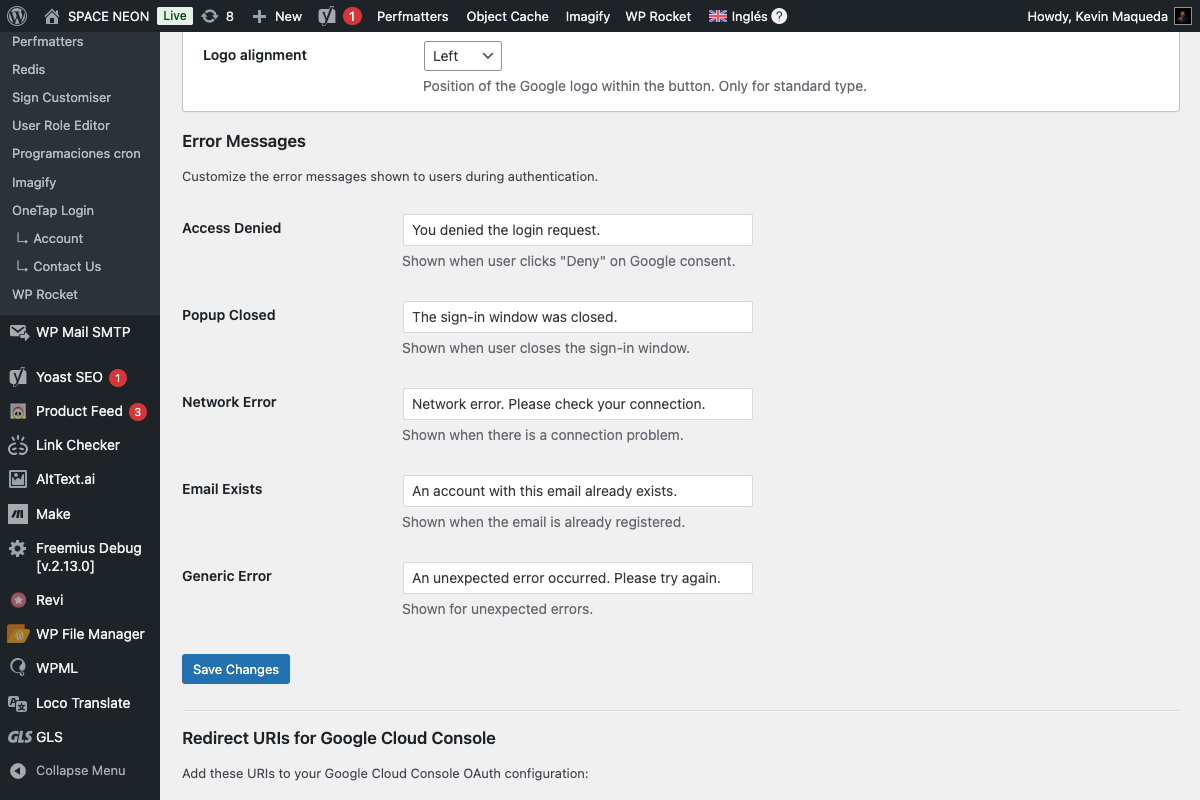
Step 2: Edit Messages
Enter your custom text for each error type.
Step 3: Save Changes
Click Save Changes to apply.
Error Details and Examples
1. Access Denied
When it occurs:
- User clicks "Deny" on Google's permission screen
- Organization policy blocks sign-in
- User declines to share information
Technical trigger: error=access_denied from Google
Default message:
Access was denied. Please try again.
Custom examples:
"Permission is required to sign in with Google. You can also use your email and password."

"It looks like you declined the sign-in. No worries—you can try again or sign in another way."

"Google sign-in was cancelled. Click the button to try again!"
2. Popup Closed
When it occurs:
- User closes the Google authentication popup
- Browser blocks the popup
- User navigates away during authentication
Technical trigger: Popup window closed before completion
Default message:
The sign-in popup was closed.
Custom examples:
"The sign-in window was closed before completing. Please try again!"

"Oops! You closed the popup. Click 'Sign in with Google' to try again."

"Sign-in interrupted. If your browser blocked a popup, please allow it and retry."
3. Network Error
When it occurs:
- Internet connection lost during sign-in
- Google servers unreachable
- Firewall blocking the connection
- Server timeout
Technical trigger: HTTP request failure
Default message:
Network error. Please check your connection.
Custom examples:
"Connection lost. Please check your internet and try again."

"We couldn't connect to Google. Refresh the page and try once more."

"Something went wrong with the connection. Make sure you're online!"
4. Email Exists
When it occurs:
- Google email matches an existing WordPress account
- Auto-linking is disabled
- Account merge not available
Technical trigger: Email already in wp_users table
Default message:
This email is already registered. Please sign in with your password.
Custom examples:
"You already have an account! Sign in with your password, or click 'Forgot Password' to reset it."

"This email is linked to an existing account. Please use your password to log in."

"Account found! Enter your password below, or reset it if you've forgotten."
With OneTap Login PRO's Account Merge feature, you can allow users to link their Google account instead of showing this error.
5. Generic Error
When it occurs:
- Unexpected server error
- Invalid token from Google
- Configuration issues
- Any unhandled exception
Technical trigger: Various unexpected conditions
Default message:
An error occurred. Please try again.
Custom examples:
"Something unexpected happened. Please try again, or contact support if this continues."

"Oops! We hit a snag. Try signing in again, or use your email and password."

"Technical difficulties! Please refresh and try again. If it persists, let us know."
Error Display
Where Errors Appear
Errors display:
- Below the sign-in button
- In a styled error container
- With appropriate styling (red/warning)
Error Container HTML
<div class="onetap-error-message" role="alert">
    <span class="onetap-error-icon" aria-hidden="true">⚠️</span>
    <span class="onetap-error-text">Your error message here</span>
</div>
Default Styling
.onetap-error-message {
    background-color: #FEF2F2;
    border: 1px solid #EF4444;
    border-radius: 4px;
    padding: 12px 16px;
    margin: 10px 0;
    color: #991B1B;
    display: flex;
    align-items: center;
    gap: 8px;
}

.onetap-error-icon {
    flex-shrink: 0;
}
Customizing Error Styling
Custom CSS
Add to your theme's CSS:
/* Change error background */
.onetap-error-message {
    background-color: #fff5f5;
    border-color: #c53030;
}

/* Change error text color */
.onetap-error-text {
    color: #c53030;
}

/* Hide icon */
.onetap-error-icon {
    display: none;
}

/* Custom border radius */
.onetap-error-message {
    border-radius: 0; /* Square corners */
}
Dark Theme
.dark-theme .onetap-error-message {
    background-color: #4a1515;
    border-color: #f56565;
    color: #fed7d7;
}
Best Practices
Writing Good Error Messages
Do's:
- Be friendly and non-blaming
- Tell users what to do next
- Keep messages short (under 100 characters)
- Match your brand voice
- Use simple language
Don'ts:
- Don't blame the user ("You did something wrong")
- Don't use technical jargon ("OAuth2 error 401")
- Don't be vague ("Error")
- Don't use scary language ("CRITICAL FAILURE")
- Don't be too long (users won't read)
Voice Examples
Formal/Corporate:
"Sign-in could not be completed. Please try again or contact support."
Friendly/Casual:
"Whoops! Something went sideways. Give it another shot!"
Technical/Developer:
"Authentication failed. Retry or use email/password login."
Minimalist:
"Try again"
Reducing Errors
Reduce Access Denied
- Clearly explain why Google sign-in is useful
- Ensure privacy policy is visible
- Use trustworthy button text
Reduce Popup Closed
- Test with common popup blockers
- Provide clear instructions if popups blocked
- Consider flow for popup-blocked browsers
Reduce Network Errors
- Use reliable hosting
- Don't block Google domains in firewall
- Monitor server uptime
Reduce Email Exists
- Enable Account Merge (PRO)
- Provide clear password reset links
- Consider auto-linking
Testing Errors
How to Trigger Each Error
| Error | How to Test |
|---|---|
| Access Denied | Click "Deny" on Google permission screen |
| Popup Closed | Close the Google popup window |
| Network Error | Disconnect internet during sign-in |
| Email Exists | Use Google with existing account's email |
| Generic Error | Difficult to trigger intentionally |
Testing Checklist
- All 5 messages entered
- Messages display correctly
- Styling matches your theme
- Messages are clear and helpful
- Mobile display tested
- Screen reader tested
Localization
Multilingual Sites
For sites using translation plugins:
Option 1: Use plugin (WPML, Polylang)
- Translate messages in plugin settings
- Messages registered as strings
Option 2: Language-neutral messages
"❌ Error • ↻ Try again"
Option 3: Simple universal phrases
"Please try again"
RTL Languages
Error messages support RTL automatically:
- Text direction follows site setting
- Icon position adjusts
- Layout mirrors correctly
Accessibility
ARIA Attributes
<div class="onetap-error-message" role="alert" aria-live="polite">
role="alert": Announces to screen readersaria-live="polite": Non-intrusive announcement
Focus Management
After error appears:
- Focus optionally moves to error
- Error visible without scrolling
- Clear dismissal method (if applicable)
Color Contrast
Default styling meets WCAG AA:
- Text on background: 4.5:1+ ratio
- Icon visible on background
Settings Reference
| Error Type | Setting Key | Max Length |
|---|---|---|
| Access Denied | error_msg_access_denied | 200 chars |
| Popup Closed | error_msg_popup_closed | 200 chars |
| Network Error | error_msg_network | 200 chars |
| Email Exists | error_msg_email_exists | 200 chars |
| Generic Error | error_msg_generic | 200 chars |
Next Steps
- Connection Test - Verify configuration
- Error Codes - Technical details
- Troubleshooting - Solving problems