Role Mapping
Role Mapping automatically assigns WordPress roles based on the user's email domain. This is essential for B2B sites where employees should get different access than external users.
Role Mapping is a PRO feature. Upgrade to PRO to unlock this functionality.
How It Works
User signs in with Google
        ↓
Plugin extracts email domain
        ↓
Check domain against mapping rules
        ↓
    Match found → Assign mapped role
        ↓
    No match → Assign default role
Configuration
Accessing Settings
- Go to Settings > OneTap Login
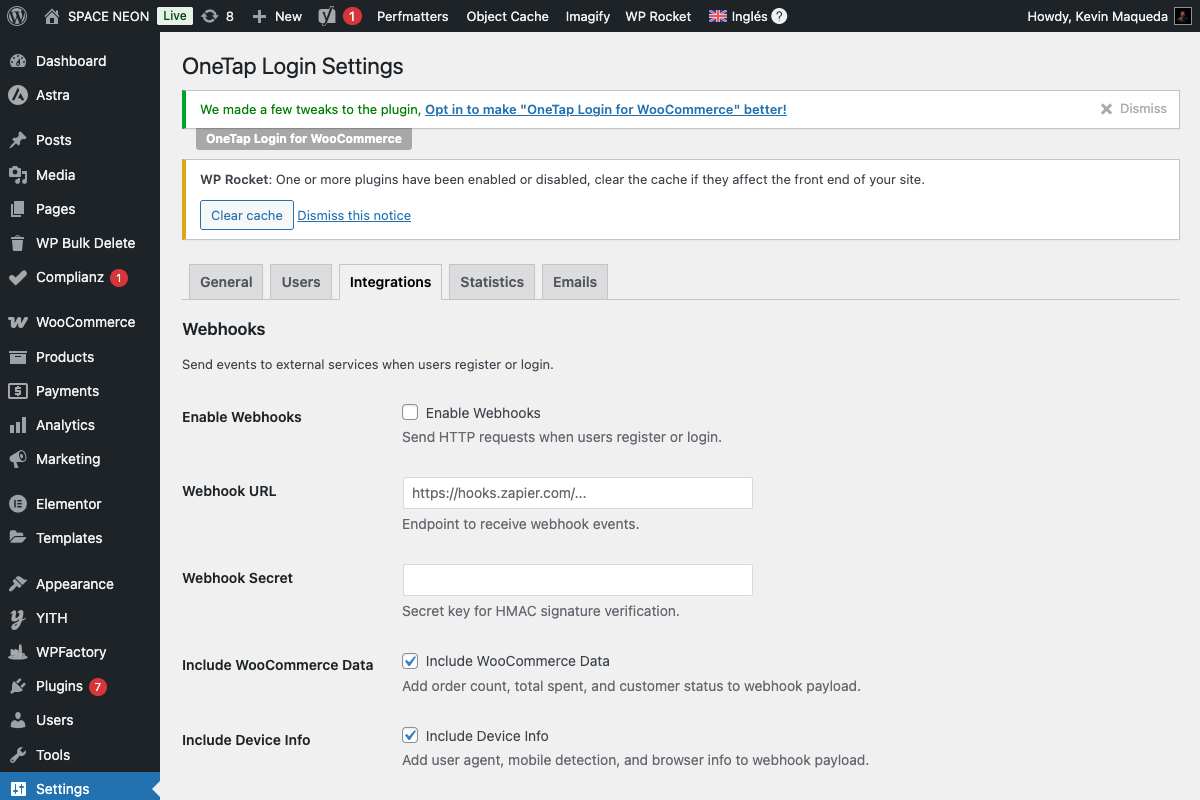
- Click Integrations tab
- Find Role Mapping section
Adding Rules
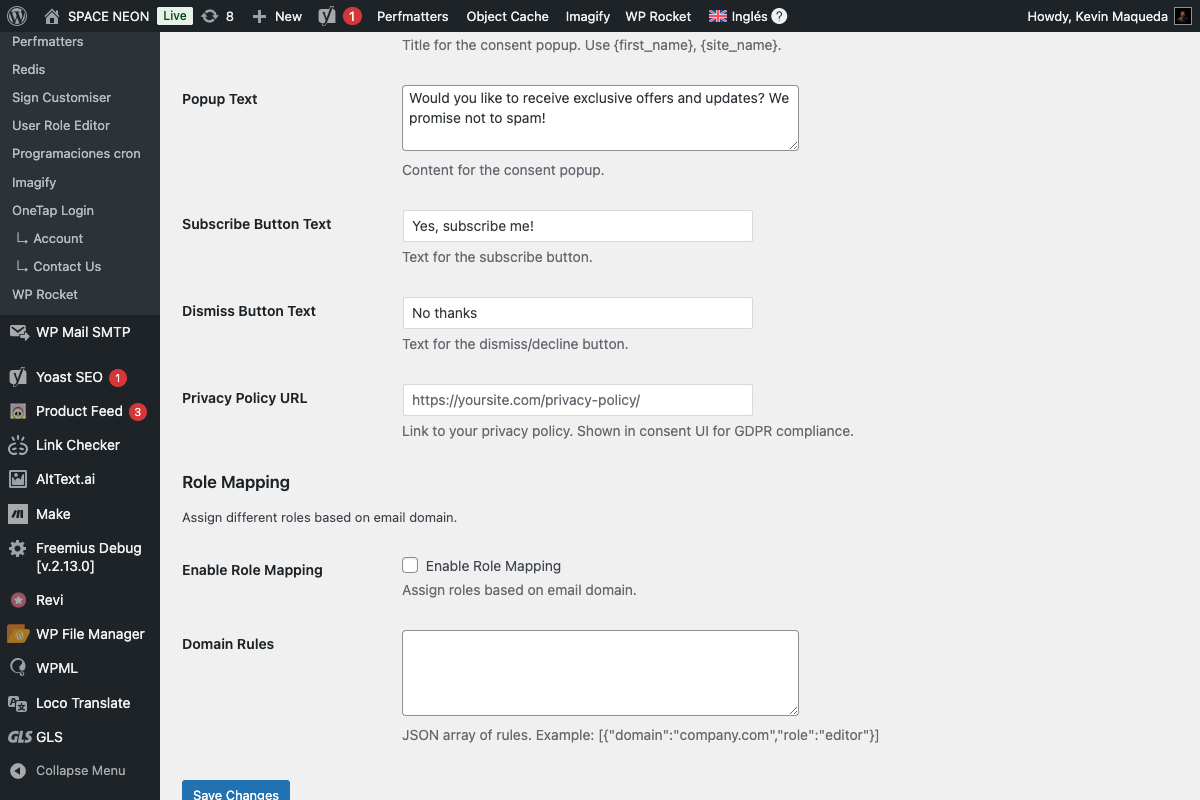
Each rule consists of:
- Domain: Email domain to match (without @)
- Role: WordPress role to assign
Example Configuration
| Domain | Role |
|---|---|
| company.com | Editor |
| partner.org | Contributor |
| agency.io | Author |
| (default) | Customer |
Rule Format
Domain Format
Enter domains without the @ symbol:
✅ company.com
✅ subdomain.company.com
❌ @company.com
❌ user@company.com
Available Roles
| Role | Capabilities |
|---|---|
| Customer | WooCommerce customer access |
| Subscriber | Read-only, profile access |
| Contributor | Write posts, cannot publish |
| Author | Write and publish own posts |
| Editor | Manage all content |
Administrator and Shop Manager cannot be assigned via Role Mapping for security reasons.
Use Cases
B2B Portal
Employees get elevated access:
@yourcompany.com → Editor
@partner.com → Contributor
* (default) → Customer
Educational Platform
Different access by institution:
@university.edu → Author
@students.university.edu → Subscriber
* (default) → Subscriber
Multi-Tenant SaaS
Company-specific access:
@tenant-a.com → Customer
@tenant-b.com → Customer
@admin.platform.com → Editor
Agency with Clients
Team vs client access:
@agency.com → Editor
@client1.com → Author
@client2.com → Author
* (default) → Subscriber
Rule Priority
Rules are evaluated top to bottom:
1. First matching rule wins
2. If no match, default role is used
3. More specific domains can be listed first
Example Priority
Rules:
1. sales.company.com → Contributor
2. company.com → Editor
3. (default) → Customer

Results:
john@sales.company.com → Contributor (rule 1)
jane@company.com → Editor (rule 2)
bob@other.com → Customer (default)
Subdomain Matching
Exact Match
company.com → Only matches @company.com
Include Subdomains
Add subdomains explicitly:
company.com → Editor
sales.company.com → Contributor
support.company.com → Contributor
Wildcard (if available)
*.company.com → Matches all subdomains
Combining with Other Features
With Domain Restrictions
Role Mapping works after domain restrictions:
1. Check domain restriction (whitelist/blacklist)
2. If allowed, proceed
3. Apply role mapping
4. Create/update user
With Default Role
The plugin setting "Default Role" is overridden by Role Mapping:
Default Role: Customer
Role Mapping: company.com → Editor

User @company.com → Gets Editor (mapped)
User @other.com → Gets Customer (default)
With Custom Redirects
Combine for full experience:
Role Mapping:
@company.com → Editor

Role Redirects:
Editor → /wp-admin/
Customer → /my-account/
Existing Users
Role Mapping applies to:
- New users: Role assigned on registration
- Existing users: Role NOT changed on login
Why Existing Users Keep Their Role
- Admin may have manually changed their role
- Prevents unexpected permission changes
- Security: downgrade could lock users out
Force Re-mapping
To re-apply mapping to existing user:
- Admin changes role manually
- Or delete user and have them re-register
Hooks for Developers
Filter Mapped Role
add_filter('onetap_mapped_role', function($role, $domain, $email) {
    // Custom logic
    if (str_ends_with($email, '+admin@company.com')) {
        return 'editor';
    }
    return $role;
}, 10, 3);
After Role Assignment
add_action('onetap_role_assigned', function($user_id, $role, $domain) {
    // Log role assignment
    error_log("User {$user_id} assigned role {$role} from domain {$domain}");
}, 10, 3);
Troubleshooting
User Got Wrong Role
Causes:
- Domain not in mapping rules
- Rule order issue
- User already existed
Solutions:
- Add domain to rules
- Check rule priority
- Manually update existing user's role
Editor/Admin Role Not Assignable
Cause: Security restriction.
Solution: Administrator and Shop Manager cannot be auto-assigned. Admin must manually promote.
Subdomain Not Matching
Cause: Only exact domain matches by default.
Solution: Add subdomain as separate rule.
Rules Not Saving
Cause: Form validation or conflict.
Solution:
- Check for special characters
- Remove duplicate domains
- Clear cache and retry
Security Considerations
Why Restrict High-Level Roles?
Allowing auto-assignment of Administrator could:
- Enable account takeover via email spoofing
- Grant full site access unintentionally
- Bypass admin approval workflows
Recommended Approach
For admin-level access:
- Assign Contributor or Author via mapping
- Admin manually promotes trusted users
- Use additional verification
Settings Summary
| Setting | Description |
|---|---|
| Enable Role Mapping | Toggle feature on/off |
| Domain Rules | List of domain → role mappings |
| Default Fallback | Uses plugin's Default Role setting |
Best Practices
Do's
- Start with restrictive roles, promote manually
- Document your mapping rules
- Test with real domains before production
- Review mappings regularly
Don'ts
- Don't create overlapping rules
- Don't rely on mapping for security-critical roles
- Don't forget subdomain variations
Next Steps
- Domain Restrictions - Whitelist/blacklist domains
- Custom Redirects - Role-based redirects
- User Settings - Default roles