Pages & Locations
OneTap Login can display the sign-in button and One Tap popup on various pages. This guide explains all available locations and how to configure them.
Default Locations
With WooCommerce
When WooCommerce is active, the plugin targets these pages by default:
| Page | One Tap | Button | Default |
|---|---|---|---|
| My Account | Yes | Yes | Enabled |
| Checkout | Yes | Yes | Disabled |
| Cart | Yes | Yes | Disabled |
| wp-login.php | Yes | Yes | Disabled |
Without WooCommerce
When WooCommerce is not installed:
| Page | One Tap | Button | Default |
|---|---|---|---|
| wp-login.php | Yes | Yes | Enabled |
| Custom login pages | Via shortcode | Via shortcode | - |
WooCommerce My Account Page
URL: https://yoursite.com/my-account/
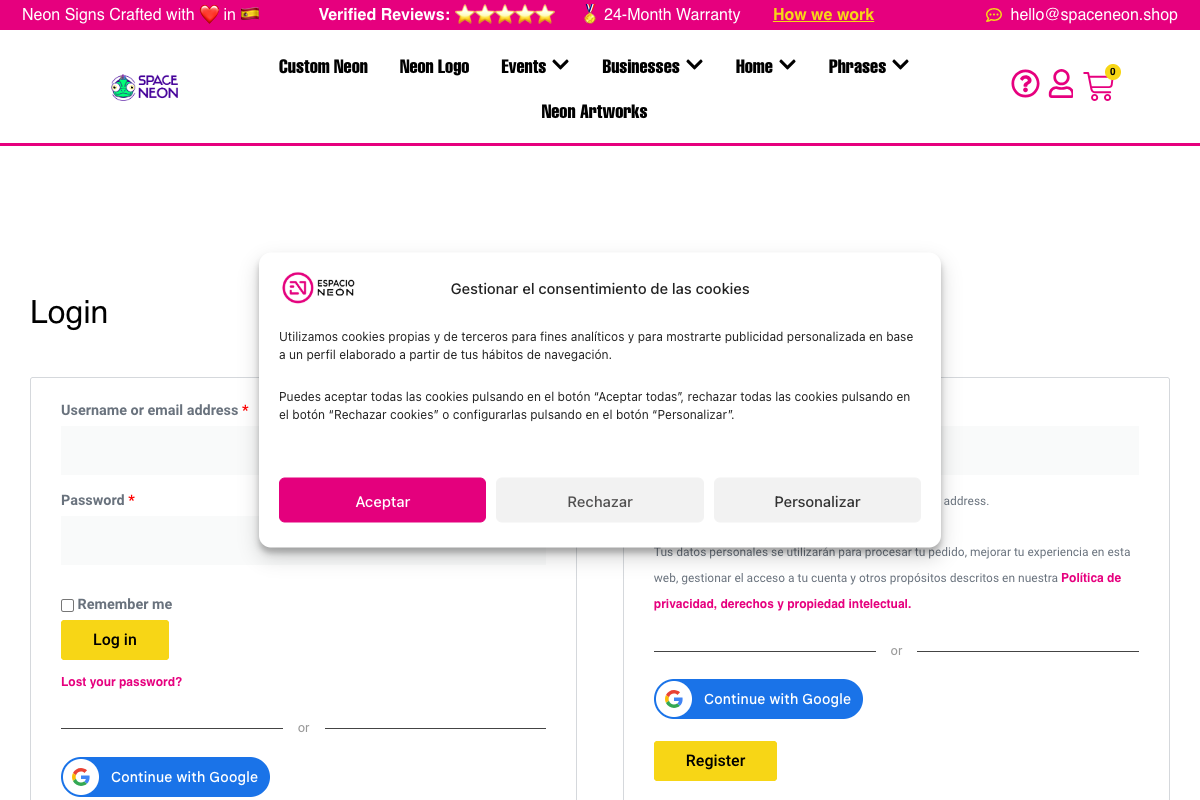
The My Account page is the primary location for Google sign-in.
What Appears
- One Tap popup: In the corner (if user has Google session)
- Sign-In Button: Below or above the login form
Configuration
Settings > OneTap Login > General > Button Configuration
☑ Enable on My Account page
Button Placement
The button appears based on your theme:
| Theme | Button Location |
|---|---|
| Storefront | Below login form |
| Astra | Above login form |
| Flatsome | Integrated in form |
| Default | Below login form |
WooCommerce Checkout Page
URL: https://yoursite.com/checkout/
Enable Google sign-in on checkout for guest customers.
Checkout page integration requires OneTap Login PRO.
What Appears
- One Tap popup: Corner popup for quick login
- Sign-In Button: In the billing section or sidebar
Configuration
Settings > OneTap Login > General > Button Configuration
☑ Enable on Checkout page (PRO)
WooCommerce Blocks Checkout
For the new block-based checkout:
- Fully compatible with WooCommerce Blocks
- Button appears in the customer information section
- One Tap popup works as expected
Classic Checkout
For the traditional shortcode-based checkout:
- Button appears in billing details section
- Positioned before or after email field
- One Tap available for logged-out users
Checkout Behavior
When a user signs in during checkout:
- Login completes without page redirect
- Billing fields auto-populate (name, email)
- User can complete checkout immediately
- Order associated with their account
WooCommerce Cart Page
URL: https://yoursite.com/cart/
Enable sign-in prompts on the cart page.
Cart page integration requires OneTap Login PRO.
What Appears
- One Tap popup: Encourages account creation
- Sign-In Button: Near proceed to checkout
Configuration
Settings > OneTap Login > General > Button Configuration
☑ Enable on Cart page (PRO)
Use Cases
- Prompt users to sign in before checkout
- Capture accounts earlier in the funnel
- Enable cart persistence across devices
WordPress Login Page
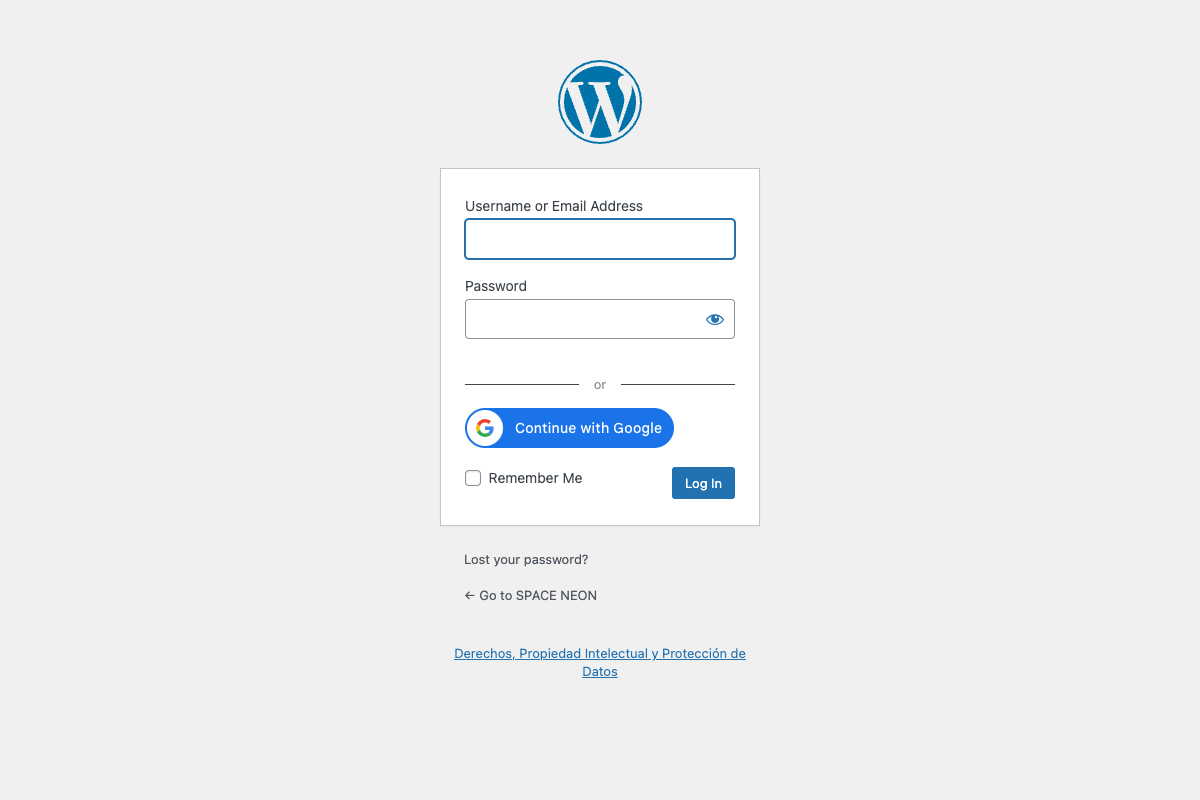
URL: https://yoursite.com/wp-login.php
The standard WordPress login page.
What Appears
- One Tap popup: Top corner
- Sign-In Button: Below the login form
Configuration
Settings > OneTap Login > General > Button Configuration
☑ Enable on wp-login.php
When to Enable
- Sites without WooCommerce
- Admin/editor login convenience
- Membership sites using WordPress login
Users with Administrator, Editor, or Shop Manager roles will be redirected to standard login even if Google button is shown. This is a security feature.
Custom Locations (PRO)
Shortcode
Place the button anywhere using the shortcode:
[onetap_button]
With parameters:
[onetap_button theme="outline" text="signin_with" size="medium"]
See Shortcode Documentation for all parameters.
Page Builders
Elementor
- Add a "Shortcode" widget
- Enter
[onetap_button] - Adjust positioning in Elementor
Divi
- Add a "Code" module
- Enter the shortcode
- Style the container as needed
Gutenberg
- Add a "Shortcode" block
- Enter
[onetap_button] - Use block controls for alignment
PHP Function
For theme developers:
<?php
if (function_exists('onetap_render_button')) {
    onetap_render_button([
        'theme' => 'filled_blue',
        'text' => 'continue_with',
        'shape' => 'pill'
    ]);
}
?>
One Tap Popup Behavior
The One Tap popup appears based on these conditions:
Conditions to Show
| Condition | Required |
|---|---|
| One Tap enabled in settings | Yes |
| User has Google session | Yes |
| User not logged into WordPress | Yes |
| On enabled page | Yes |
| Cookie consent given (if required) | Yes |
| Not in cooldown period | Yes |
Cooldown Period
Google implements a cooldown after users dismiss the popup:
| Dismissals | Cooldown |
|---|---|
| 1 dismiss | 2 hours |
| 2 dismisses | 1 day |
| 3+ dismisses | 2 weeks |
Use incognito windows to bypass the cooldown during testing.
Popup Position
The popup appears in a fixed corner position:
| Position | Location |
|---|---|
| Default | Top-right |
| RTL sites | Top-left |
| Mobile | Top-center |
Button Placement Within Pages
Login Form Integration
The button integrates with login forms:
WooCommerce My Account:
<form class="woocommerce-form-login">
    <!-- Username/password fields -->
    <div class="onetap-button-wrapper">
        <!-- Google button here -->
    </div>
    <!-- Submit button -->
</form>
WordPress Login:
<form id="loginform">
    <!-- Username/password fields -->
    <div class="onetap-button-wrapper">
        <!-- Google button here -->
    </div>
    <!-- Submit button -->
</form>
Separator
The plugin adds a visual separator:
──────── or ────────
   [Sign in with Google]
This indicates Google sign-in as an alternative to username/password.
Mobile Considerations
Responsive Button
The button adapts to mobile screens:
| Screen Size | Button Behavior |
|---|---|
| Desktop (>768px) | Normal size |
| Tablet (481-768px) | Slightly smaller |
| Mobile (<480px) | Full width |
Mobile One Tap
On mobile devices:
- Popup appears at top-center
- Larger touch targets
- Swipe-to-dismiss supported
Configuration Summary
| Location | Setting | Default | Version |
|---|---|---|---|
| My Account | Enable on My Account | On | FREE |
| Checkout | Enable on Checkout | Off | PRO |
| Cart | Enable on Cart | Off | PRO |
| wp-login.php | Enable on wp-login.php | Off | FREE |
| Custom | Shortcode | - | PRO |
Best Practices
E-commerce Sites
- Enable on My Account (essential)
- Enable on Checkout (PRO) for conversion
- Consider Cart page for early capture
Membership Sites
- Enable on wp-login.php
- Use shortcode on custom login pages
- Enable on relevant member pages
Blogs
- Enable on wp-login.php
- Add shortcode to comment forms (if using login)
- Keep minimal for reader experience
Next Steps
- Error Messages - Customize error text
- Cookie Consent - GDPR configuration
- Shortcode (PRO) - Custom placement