Brevo Integration
Connect OneTap Login to Brevo (formerly Sendinblue) to automatically add Google sign-in users to your email list.
Prerequisites
- Brevo account (free tier available)
- At least one list created
- API key generated
- (Optional) DOI template created
Step 1: Get Brevo API Key
1.1 Access API Settings
- Log into Brevo
- Click your name (top right)
- Click SMTP & API
- Select API Keys tab
1.2 Create API Key
- Click Generate a new API key
- Name it "OneTap Login"
- Copy the key
API Key Format:
xkeysib-xxxxxxxxxxxxxxxxxxxxxxxxxxxxxxxx-xxxxxxxx
Step 2: Get List ID
2.1 Find Your List
- Go to Contacts > Lists
- Click on your target list
- Note the List ID shown
2.2 Copy List ID
The List ID is displayed on the list page:
List ID: 5
Or in the URL when viewing the list.
Step 3: Configure OneTap Login
3.1 Access Settings
- Go to WordPress Admin
- Navigate to Settings > OneTap Login
- Click Integrations tab
- Find Email Marketing section
3.2 Enter Credentials
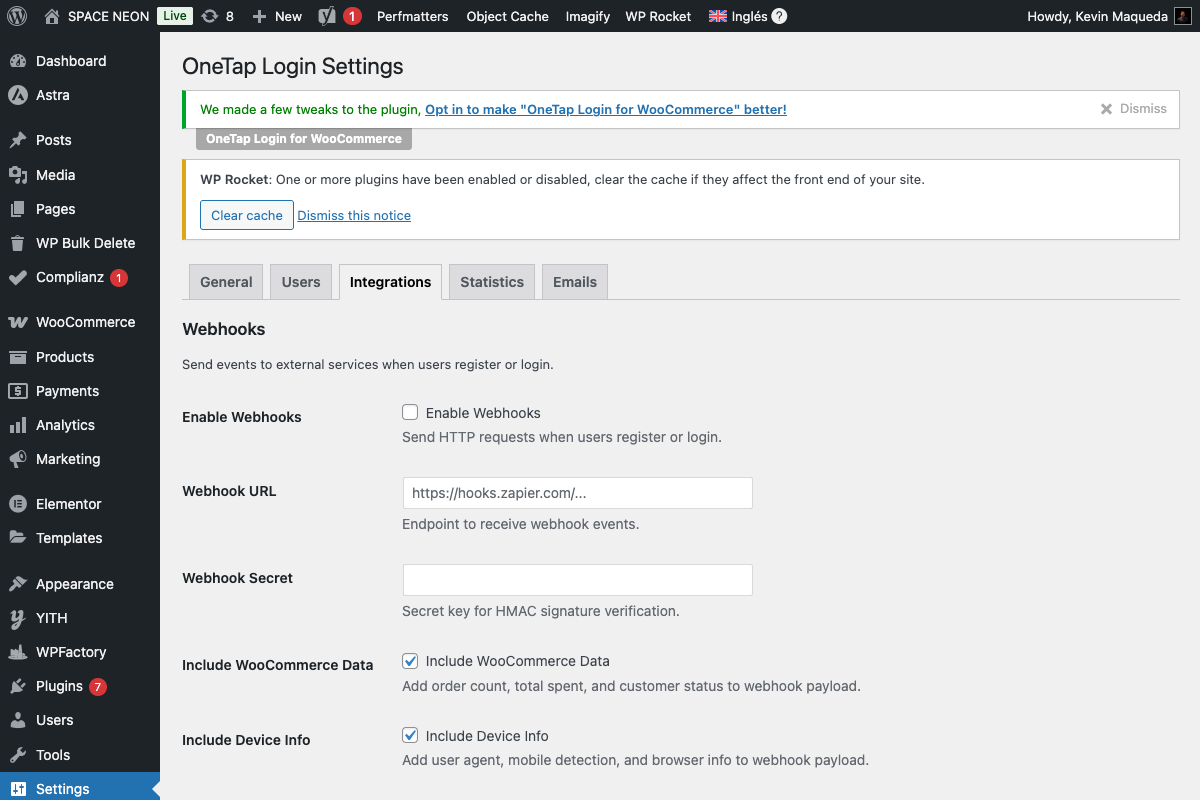
- Enable Email Marketing: Toggle on
- Provider: Select Brevo
- API Key: Paste your API key
- List ID: Enter your List ID
- DOI Template ID: (Optional) For double opt-in
3.3 Test Connection
- Click Test Connection
- Verify success message
- Click Save Changes
Double Opt-in (DOI) Setup
Brevo offers advanced DOI configuration.
Step 1: Create DOI Template
- Go to Templates > Email Templates
- Click New Template
- Design your confirmation email
- Include confirmation link:
{{ doiurl }} - Save and note the Template ID
Step 2: Create Redirect Page
- In Settings > DOI & Double Opt-in
- Set confirmation redirect URL
- This is where users land after confirming
Step 3: Configure in OneTap
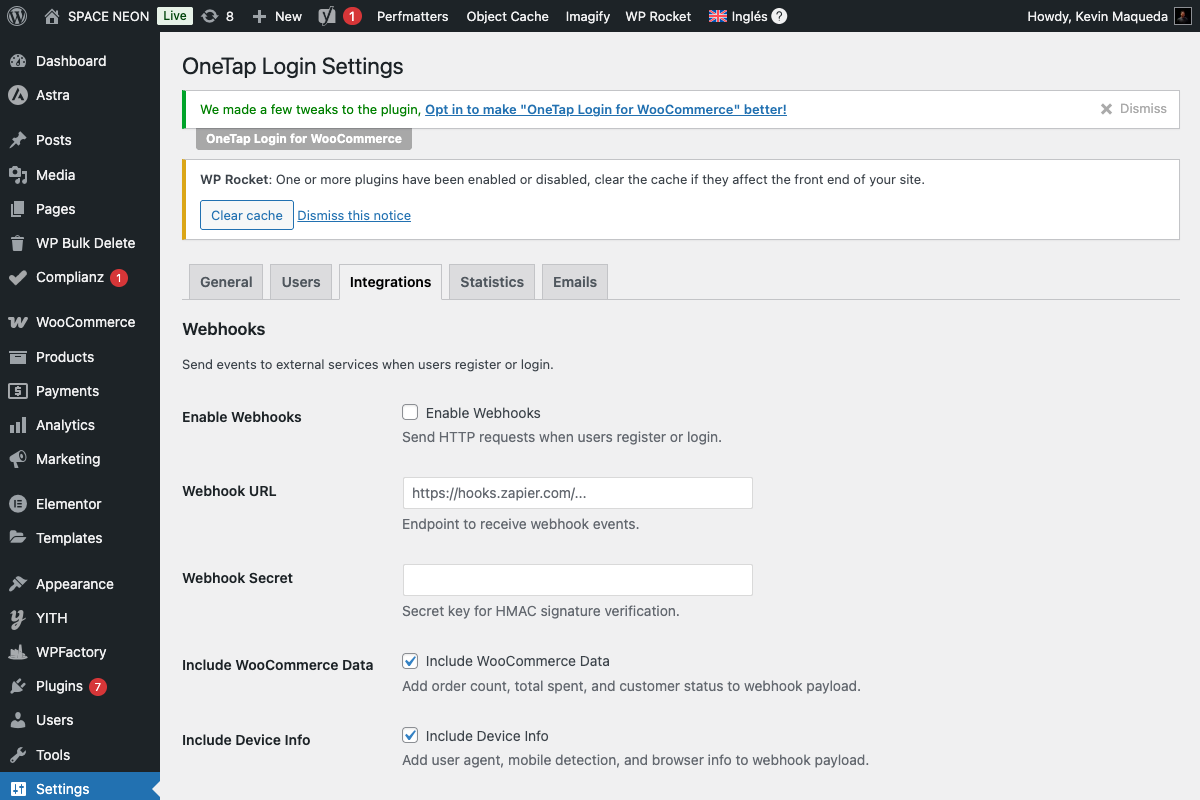
- Enter DOI Template ID in OneTap settings
- Save changes
DOI Flow
1. User signs up via Google
2. Added to list (not confirmed)
3. DOI email sent using your template
4. User clicks confirmation link
5. User confirmed, redirected to your page
Configuration Options
Contact Attributes
Brevo receives:
| OneTap Field | Brevo Attribute |
|---|---|
| First Name | FIRSTNAME |
| Last Name | LASTNAME |
Custom Attributes
Create custom attributes in Brevo:
- Go to Contacts > Attributes
- Create attribute (e.g., SIGNUP_SOURCE)
- Map in OneTap if available
Subscriber Status
With DOI Enabled
New contact → Added to list
        ↓
DOI email sent
        ↓
User clicks confirm
        ↓
Contact marked as opted-in
Without DOI
New contact → Added to list (active)
Verification
Check Contact
- Go to Brevo Contacts
- Search for test email
- Verify contact exists
- Check list membership
Check DOI Status
- Click on contact
- View Activity tab
- Check opt-in status
API Rate Limits
Brevo limits vary by plan:
| Plan | Requests/Day |
|---|---|
| Free | 300 |
| Lite | Based on plan |
| Premium | Higher limits |
OneTap uses minimal API calls.
Error Messages
"Invalid API Key"
Cause: Wrong or inactive API key.
Solution:
- Verify API key in Brevo dashboard
- Check key hasn't been revoked
- Generate new key if needed
"List Does Not Exist"
Cause: Wrong List ID.
Solution:
- Verify List ID in Brevo
- Use numeric ID
- Check list isn't deleted
"Contact Already Exists"
Cause: Email already in Brevo.
Solution: Normal. Brevo updates existing contacts.
"Template Not Found"
Cause: Wrong DOI Template ID.
Solution:
- Verify template exists
- Use numeric template ID
- Check template is active
Brevo-Specific Features
SMS Marketing
Brevo supports SMS. While OneTap doesn't send SMS directly, you can:
- Capture phone in WooCommerce
- Sync to Brevo
- Use Brevo automations
Transactional Emails
Brevo excels at transactional emails:
- Consider for welcome emails
- Better deliverability than WordPress
- Track opens/clicks
Automations
Create automation workflows:
- Go to Automation
- Create new workflow
- Trigger: Contact added to list
- Add welcome series
Segmentation
Create segment of Google users:
- Go to Contacts > Segments
- Condition: Added from [OneTap source]
Integration Code
How OneTap Calls Brevo
// Simplified example
$response = wp_remote_post(
    'https://api.brevo.com/v3/contacts',
    [
        'headers' => [
            'api-key' => $api_key,
            'Content-Type' => 'application/json'
        ],
        'body' => json_encode([
            'email' => $email,
            'attributes' => [
                'FIRSTNAME' => $first_name,
                'LASTNAME' => $last_name
            ],
            'listIds' => [(int)$list_id],
            'updateEnabled' => true
        ])
    ]
);

// If DOI enabled, trigger DOI
if ($doi_template_id) {
    wp_remote_post(
        'https://api.brevo.com/v3/contacts/doubleOptinConfirmation',
        [
            'headers' => [...],
            'body' => json_encode([
                'email' => $email,
                'templateId' => (int)$doi_template_id,
                'redirectionUrl' => $redirect_url
            ])
        ]
    );
}
Troubleshooting
Connection Test Fails
- Verify API key format (starts with
xkeysib-) - Check API key permissions
- Ensure account is verified
- Try new API key
DOI Email Not Sending
- Verify DOI Template ID
- Check template is active
- Test template manually in Brevo
- Check email deliverability
Contact Not in List
- Check list ID is correct
- Verify list is active
- Check Brevo blacklist
- Review API response logs
Best Practices
Do's
- Use DOI for GDPR compliance
- Create custom DOI template
- Set up welcome automation
- Monitor deliverability scores
Don'ts
- Don't exceed rate limits
- Don't use personal email as sender
- Don't skip DOI for EU contacts
Next Steps
- Marketing Consent - GDPR consent UI
- Email Marketing Overview - Compare providers
- Klaviyo Setup - Alternative provider