Klaviyo Integration
Connect OneTap Login to Klaviyo to automatically add Google sign-in users to your email list. Klaviyo is particularly powerful for e-commerce stores.
Prerequisites
- Klaviyo account (free tier available)
- At least one list created
- API key generated
Step 1: Get Klaviyo API Key
1.1 Access API Settings
- Log into Klaviyo
- Click Settings (gear icon)
- Click API Keys
1.2 Create Private API Key
- Click Create Private API Key
- Name it "OneTap Login"
- Select scopes:
- Lists: Read/Write
- Profiles: Read/Write
- Click Create
- Copy the key
API Key Format:
pk_xxxxxxxxxxxxxxxxxxxxxxxxxxxxxxxx
Use a Private API Key, not Public API Key. The Public key cannot write subscribers.
Step 2: Get List ID
2.1 Find Your List
- Go to Audience > Lists & Segments
- Click on your target list
- Click Settings tab
2.2 Copy List ID
The List ID is shown in settings:
List ID: XxXxXx
Or in the URL:
https://www.klaviyo.com/list/XxXxXx/
                             ^^^^^^
                             List ID
Step 3: Configure OneTap Login
3.1 Access Settings
- Go to WordPress Admin
- Navigate to Settings > OneTap Login
- Click Integrations tab
- Find Email Marketing section
3.2 Enter Credentials
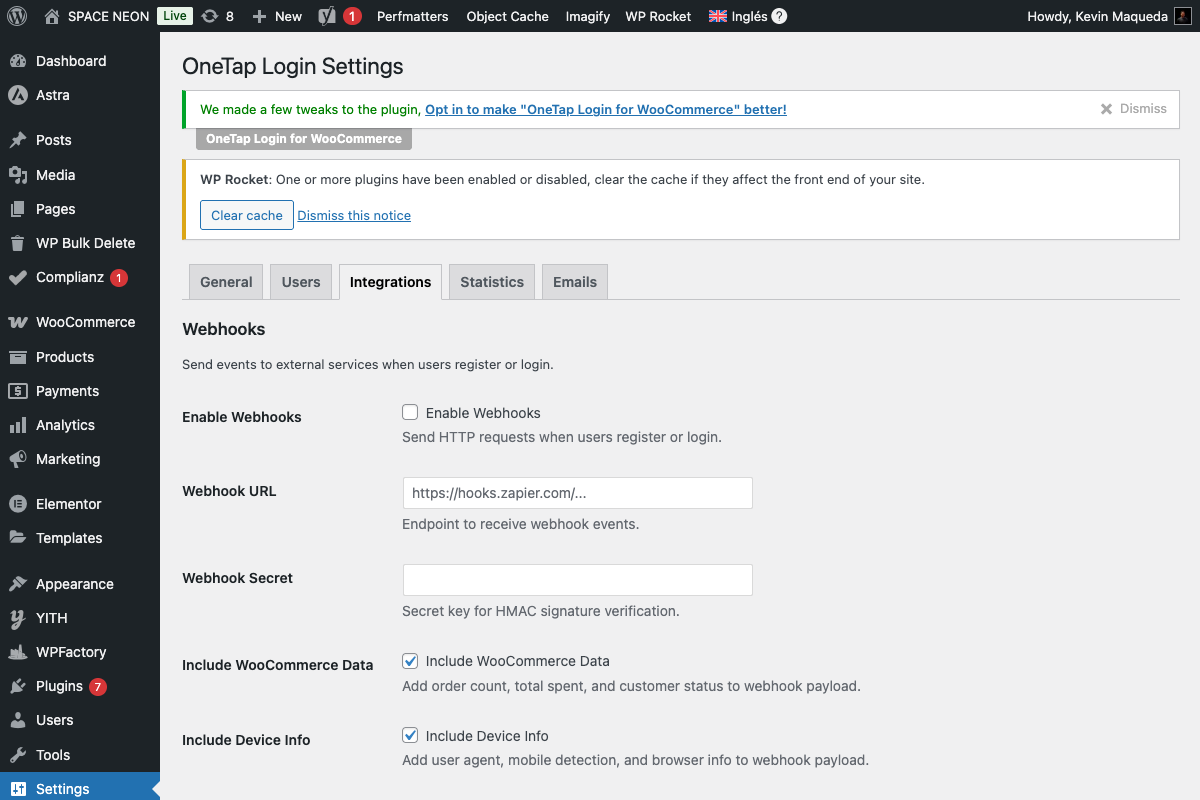
- Enable Email Marketing: Toggle on
- Provider: Select Klaviyo
- API Key: Paste your Private API key
- List ID: Enter your List ID
3.3 Test Connection
- Click Test Connection
- Verify success message
- Click Save Changes
Configuration Options
Double Opt-in
Configure in Klaviyo:
- Go to Settings > Email
- Under Double Opt-In, enable it
- Customize confirmation email
Klaviyo handles DOI automatically when enabled.
Profile Properties
Klaviyo receives:
| OneTap Field | Klaviyo Property |
|---|---|
| First Name | $first_name |
| Last Name | $last_name |
Custom Properties
Add custom profile properties:
{
  "signup_source": "google_onetap",
  "signup_date": "2024-01-15"
}
Subscriber Flow
With Double Opt-in
1. Profile created in Klaviyo
2. Added to list (not confirmed)
3. DOI email sent by Klaviyo
4. User confirms
5. Status: Subscribed
Without Double Opt-in
1. Profile created
2. Added to list
3. Status: Subscribed immediately
Verification
Check Profile
- Go to Klaviyo Profiles
- Search for test email
- Verify profile exists
- Check list membership
Check Activity
- Click on profile
- View Activity Feed
- See subscription event
Klaviyo for E-commerce
WooCommerce Integration
If you also use Klaviyo's WooCommerce plugin:
- Profiles sync automatically
- Order data flows to Klaviyo
- OneTap adds signup source
Event Tracking
Klaviyo tracks these events:
- Profile created
- Added to list
- (With WC plugin) Placed Order, etc.
Segments
Create segment of Google users:
- Go to Lists & Segments
- Create segment
- Condition: Properties > signup_source equals google_onetap
API Rate Limits
Klaviyo limits:
- 75 requests/second
- 700 requests/minute
More than enough for OneTap usage.
Error Messages
"Invalid API Key"
Cause: Wrong or inactive API key.
Solution:
- Verify using Private key (not Public)
- Check key starts with
pk_ - Verify key hasn't been revoked
"List Not Found"
Cause: Wrong List ID.
Solution:
- Verify List ID in Klaviyo
- Check list isn't archived
- Copy ID from list settings
"Profile Suppressed"
Cause: Email is on suppression list.
Solution: Check Klaviyo suppression lists. This might be expected for bounced/unsubscribed emails.
"Invalid Consent"
Cause: Consent issues.
Solution: Ensure marketing consent is properly captured.
Klaviyo-Specific Features
Flows (Automations)
Create welcome flow:
- Go to Flows
- Create from template or scratch
- Trigger: Added to List
- Add emails, delays, conditions
Predictive Analytics
Klaviyo offers:
- Customer lifetime value prediction
- Churn risk scoring
- Next purchase prediction
Works best with order data.
SMS Marketing
Klaviyo supports SMS:
- Enable SMS in Klaviyo settings
- Collect phone numbers
- Add to SMS consent list
OneTap doesn't capture phone by default.
Catalog/Product Feeds
For e-commerce:
- Sync product catalog
- Send product recommendations
- Abandoned cart emails
Integration Code
How OneTap Calls Klaviyo
// Simplified example - Creating profile and adding to list
$response = wp_remote_post(
    'https://a.klaviyo.com/api/profiles/',
    [
        'headers' => [
            'Authorization' => 'Klaviyo-API-Key ' . $api_key,
            'Content-Type' => 'application/json',
            'revision' => '2024-02-15'
        ],
        'body' => json_encode([
            'data' => [
                'type' => 'profile',
                'attributes' => [
                    'email' => $email,
                    'first_name' => $first_name,
                    'last_name' => $last_name,
                    'properties' => [
                        'signup_source' => 'google_onetap'
                    ]
                ]
            ]
        ])
    ]
);

// Then add to list
$profile_id = json_decode($response['body'])->data->id;

wp_remote_post(
    "https://a.klaviyo.com/api/lists/{$list_id}/relationships/profiles/",
    [
        'headers' => [...],
        'body' => json_encode([
            'data' => [
                ['type' => 'profile', 'id' => $profile_id]
            ]
        ])
    ]
);
Troubleshooting
Connection Test Fails
- Verify Private API key (pk_...)
- Check API key has correct scopes
- Ensure account is active
- Try new API key
Profile Not in List
- Verify list ID
- Check profile exists in Klaviyo
- Verify list isn't archived
- Check API response logs
Duplicate Profiles
Klaviyo dedupes by email automatically. You shouldn't see duplicates.
Best Practices
Do's
- Use Private API key
- Enable double opt-in for GDPR
- Set up welcome flow
- Track signup source
- Integrate WooCommerce plugin too
Don'ts
- Don't use Public API key
- Don't skip DOI for EU
- Don't archive active lists
Next Steps
- Marketing Consent - GDPR consent UI
- Email Marketing Overview - Compare providers
- GetResponse Setup - Alternative provider